Process Lasso vs Built-in Windows CPU Management: Gaming Performance Comparison
Process Lasso offers advanced CPU priority management and ProBalance technology that can reduce gaming stutters and improve frame consistency compared to Windows' basic task scheduling, though results vary by system configuration and game type.
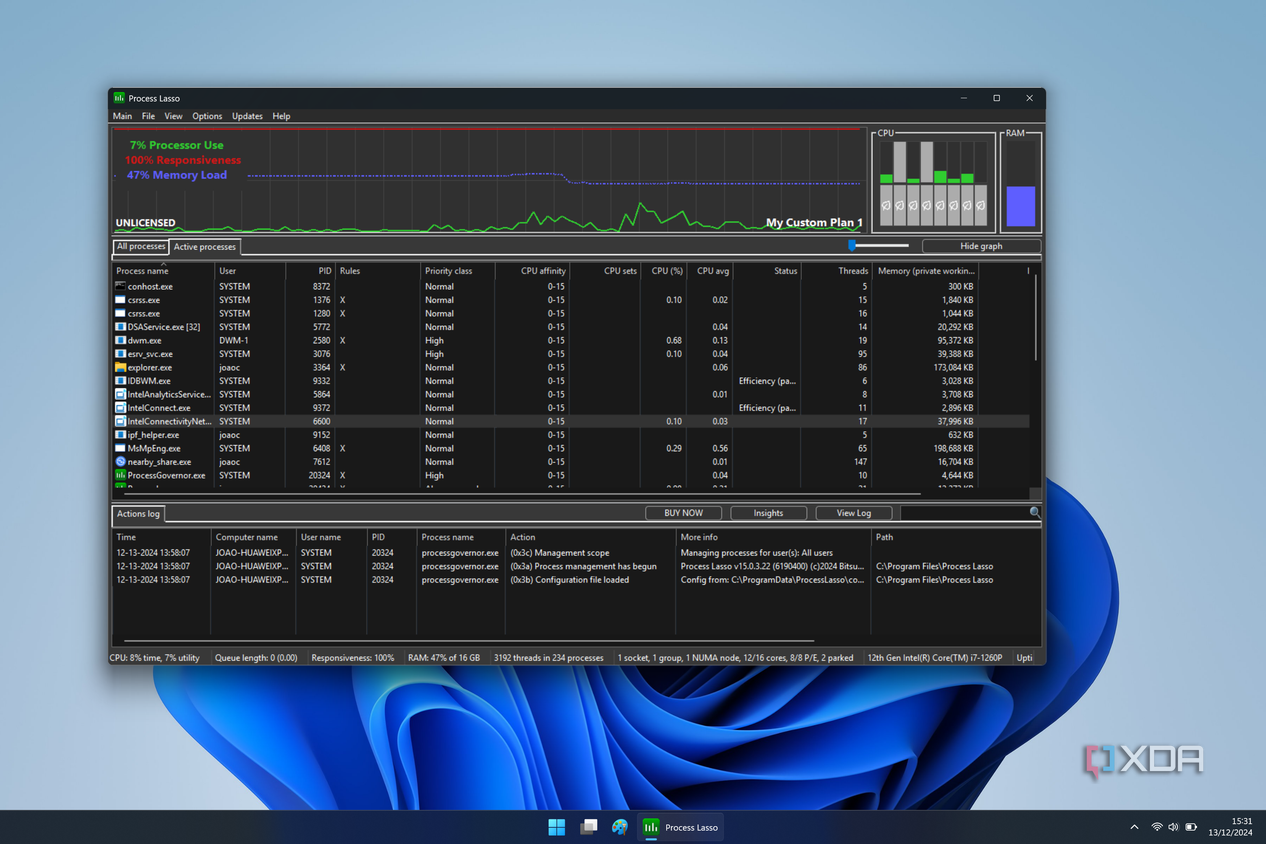
Process Lasso vs Built-in Windows CPU Management: Gaming Performance Comparison
Windows includes basic CPU management through Task Manager and its built-in task scheduler, but Process Lasso offers advanced features like ProBalance technology and granular CPU affinity controls. This Process Lasso vs Built-in Windows CPU Management gaming performance comparison examines whether the additional control translates to measurable improvements in frame rates, input lag, and overall gaming stability.
Windows Built-in CPU Management Capabilities
Windows manages CPU resources through its kernel scheduler, which automatically assigns processor time to running applications. The operating system uses priority classes ranging from Idle to Real-time, with most games running at Normal priority by default.
Task Manager allows manual priority adjustments, but these changes reset when applications restart. Windows also includes basic CPU affinity settings, letting you assign specific processes to particular CPU cores. However, these manual adjustments require constant user intervention and lack automation.
The built-in scheduler works adequately for general computing but struggles when background processes compete for CPU resources during gaming sessions. Windows cannot distinguish between essential gaming processes and less critical background tasks without manual configuration.
Process Lasso's Advanced Features
Process Lasso extends Windows' basic CPU management with several gaming-focused features. ProBalance technology automatically detects when processes consume excessive CPU resources and temporarily lowers their priority to prevent system responsiveness issues.
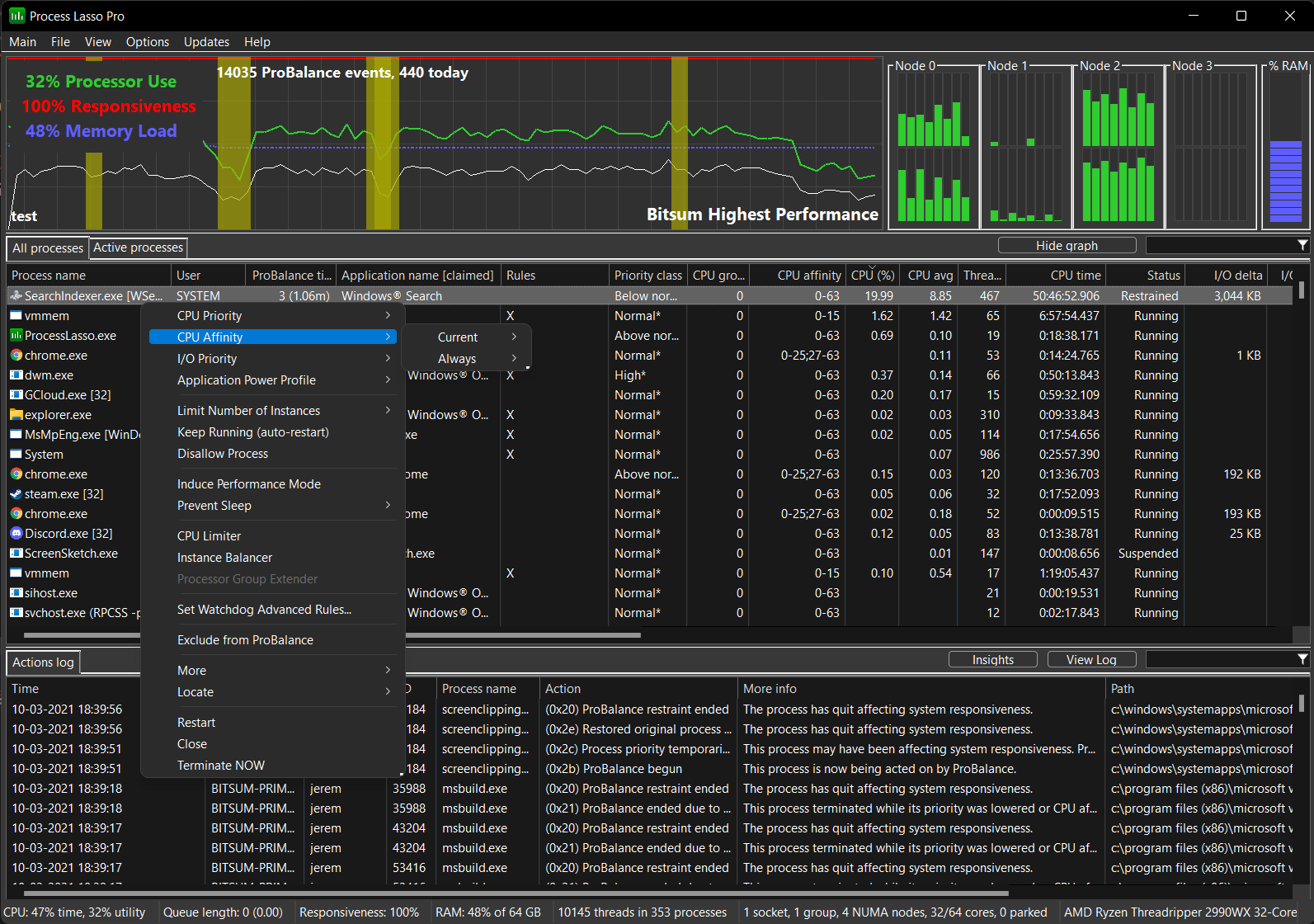
The software includes persistent priority and affinity settings that survive application restarts. You can configure specific games to always run at High priority while restricting background applications to lower priority levels. CPU Sets functionality allows more precise core assignment than Windows' basic affinity controls.
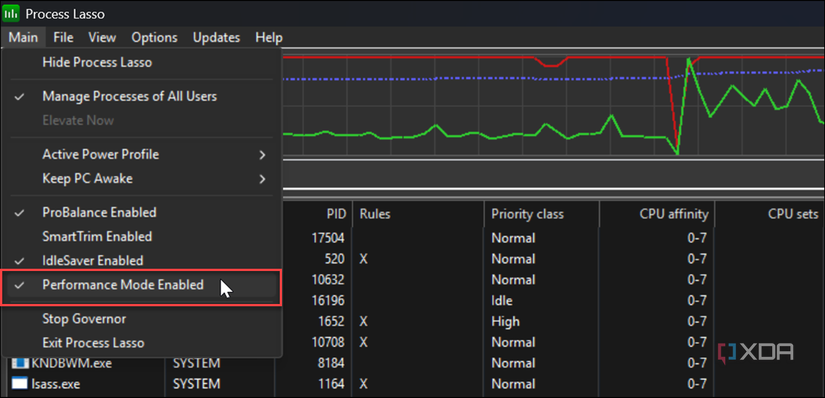
Performance Mode creates gaming-optimized profiles that automatically activate when launching games. This feature can disable Windows services, adjust process priorities, and modify CPU scheduling policies specifically for gaming workloads.
Gaming Performance Impact Analysis
Process Lasso's benefits become most apparent on systems with limited CPU resources or heavy background activity. Gaming laptops and older desktop systems typically see the largest improvements, particularly in CPU-intensive games or when running streaming software simultaneously.
Frame time consistency often improves more than average frame rates. Process Lasso's ProBalance feature reduces stuttering caused by background processes suddenly demanding CPU resources. This results in smoother gameplay even when overall frame rates remain similar.
Modern high-end systems with 8+ CPU cores may see minimal benefits from Process Lasso, as they have sufficient processing power to handle games and background tasks simultaneously without resource conflicts.
Input lag improvements vary significantly by game engine and system configuration. Competitive multiplayer games that rely heavily on consistent frame pacing may benefit from Process Lasso's priority management, while single-player games with built-in frame limiting show less improvement.
Best Process Lasso Settings for Gaming
Optimal Process Lasso gaming configurations depend on your specific hardware and usage patterns. Enable ProBalance to automatically manage background process interference. Set your primary games to High priority while keeping system-critical processes at Normal priority.
CPU affinity settings work best on systems with distinct performance and efficiency cores. Assign games to performance cores while directing background tasks to efficiency cores. Avoid assigning games to all available cores, as this can interfere with system processes.
- Enable ProBalance for automatic background process management
- Set games to High priority, avoid Real-time priority
- Use CPU Sets instead of basic affinity on modern processors
- Configure Performance Mode profiles for individual games
- Monitor CPU usage patterns before making permanent changes
Performance Mode should be used selectively rather than as a permanent setting. Activating it only during gaming sessions prevents potential system instability while maximizing gaming performance benefits.
Process Lasso CPU Sets vs Affinity
CPU Sets provide more sophisticated core assignment than traditional affinity controls. While affinity simply restricts processes to specific cores, CPU Sets create isolated groups of cores with dedicated scheduling policies.
This distinction matters most on hybrid processors with performance and efficiency cores. CPU Sets can ensure games run exclusively on performance cores while preventing efficiency cores from handling gaming workloads inappropriately.
Does Process Lasso Reduce Lag?
Process Lasso can reduce lag in specific scenarios, particularly when background applications interfere with game performance. The software's ProBalance feature prevents sudden CPU spikes from non-gaming processes that would otherwise cause frame drops or input delays.
Network lag remains unaffected by Process Lasso, as it stems from internet connectivity rather than CPU scheduling. However, system-induced lag from inadequate CPU resource allocation can improve with proper Process Lasso configuration.
System Requirements and Compatibility
Process Lasso works with all Windows versions from Windows 7 through Windows 11. The software requires minimal system resources and runs continuously in the background without impacting system performance.
Compatibility issues rarely occur with modern games, though some anti-cheat systems may flag Process Lasso as potentially problematic software. Most major gaming platforms including Steam, Epic Games Store, and Battle.net work normally with Process Lasso active.
Some competitive games with kernel-level anti-cheat systems may require Process Lasso to be disabled or configured with specific exclusions to prevent false positive detections.
When Windows Built-in Management Suffices
High-end gaming systems with modern CPUs and minimal background software may not benefit significantly from Process Lasso. Windows' built-in scheduler handles resource allocation adequately when sufficient processing power exists for all running applications.
Clean Windows installations with gaming-focused configurations often perform well without additional process management software. The benefits of Process Lasso become more apparent on systems with extensive background software or resource constraints.
Should I keep ProBalance enabled while gaming?
Yes, ProBalance should remain enabled as it automatically prevents background processes from interfering with game performance without requiring manual intervention.
Can Process Lasso improve performance in competitive games like CS2?
Process Lasso can improve frame consistency and reduce stuttering in CS2, particularly on systems with limited CPU resources or when running streaming software simultaneously.
Is Process Lasso better than manually setting priorities in Task Manager?
Process Lasso provides persistent settings that survive application restarts and automatic management features that manual Task Manager adjustments cannot match.
Does Process Lasso work with modern Intel and AMD processors?
Yes, Process Lasso supports both Intel and AMD processors, including hybrid architectures with performance and efficiency cores.

