How to reduce input lag on PC
Input delay tuning for mouse, keyboard, USB controllers, and background scheduling in Windows.
The problem
Your aim feels mushy or delayed even on a fast PC — clicks and movement don't register the instant you make them.
The fix
Stabilise the USB and scheduler path, then layer optional Pro input tweaks (MSI mode, xHCI moderation, raw input queue) and measure the difference.
Why this guide matters
Input lag often comes from stacked delays: USB behavior, scheduler contention, and background overlays. You usually will not fix it by touching only one setting.
Your goal is not to make the system look aggressive. Your goal is consistent click-to-response feel under real match load, with no hidden regressions in stability.
Before you start
- Use one mouse polling configuration and do not change it mid-test.
- Disable unnecessary overlays, capture software, and browser tabs during testing.
- Test in the same game mode and map to keep latency perception comparable.
Step-by-step workflow
Stabilize device path
Apply this phase in isolation, then validate before moving forward. The goal is measurable improvement in stability and responsiveness, not maximum tweak count.
- Use high-quality USB ports connected to the primary controller path.
- Disable unnecessary USB power saving behavior on gaming peripherals.
- Keep polling settings realistic for your CPU and game engine.
Cut scheduler interference
Apply this phase in isolation, then validate before moving forward. The goal is measurable improvement in stability and responsiveness, not maximum tweak count.
- Reduce background process pressure before launching the game.
- Use foreground-priority friendly tuning for active gameplay windows.
- Close overlays and capture tools that add render queue latency.
Measure before and after
Apply this phase in isolation, then validate before moving forward. The goal is measurable improvement in stability and responsiveness, not maximum tweak count.
- Track frame times and mouse response consistency in the same map.
- Change one parameter at a time to isolate impact.
- Keep a fallback profile for instant rollback.
How to run this inside QwikTwik
Start from the Free tools to build a stable baseline. Each path below maps to a real tab in the QwikTwik desktop app — open the named tab and apply items in the listed order.
Free path
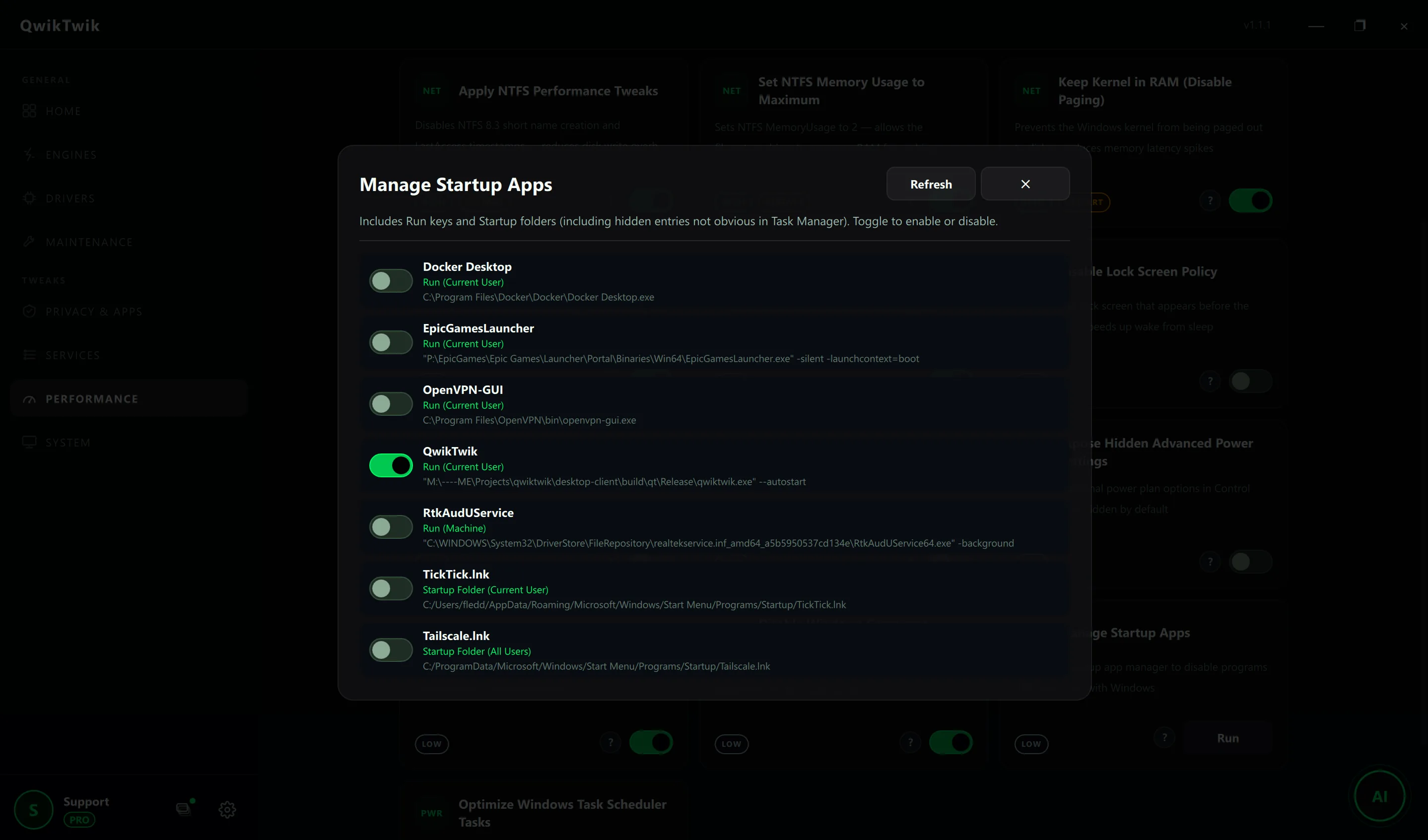
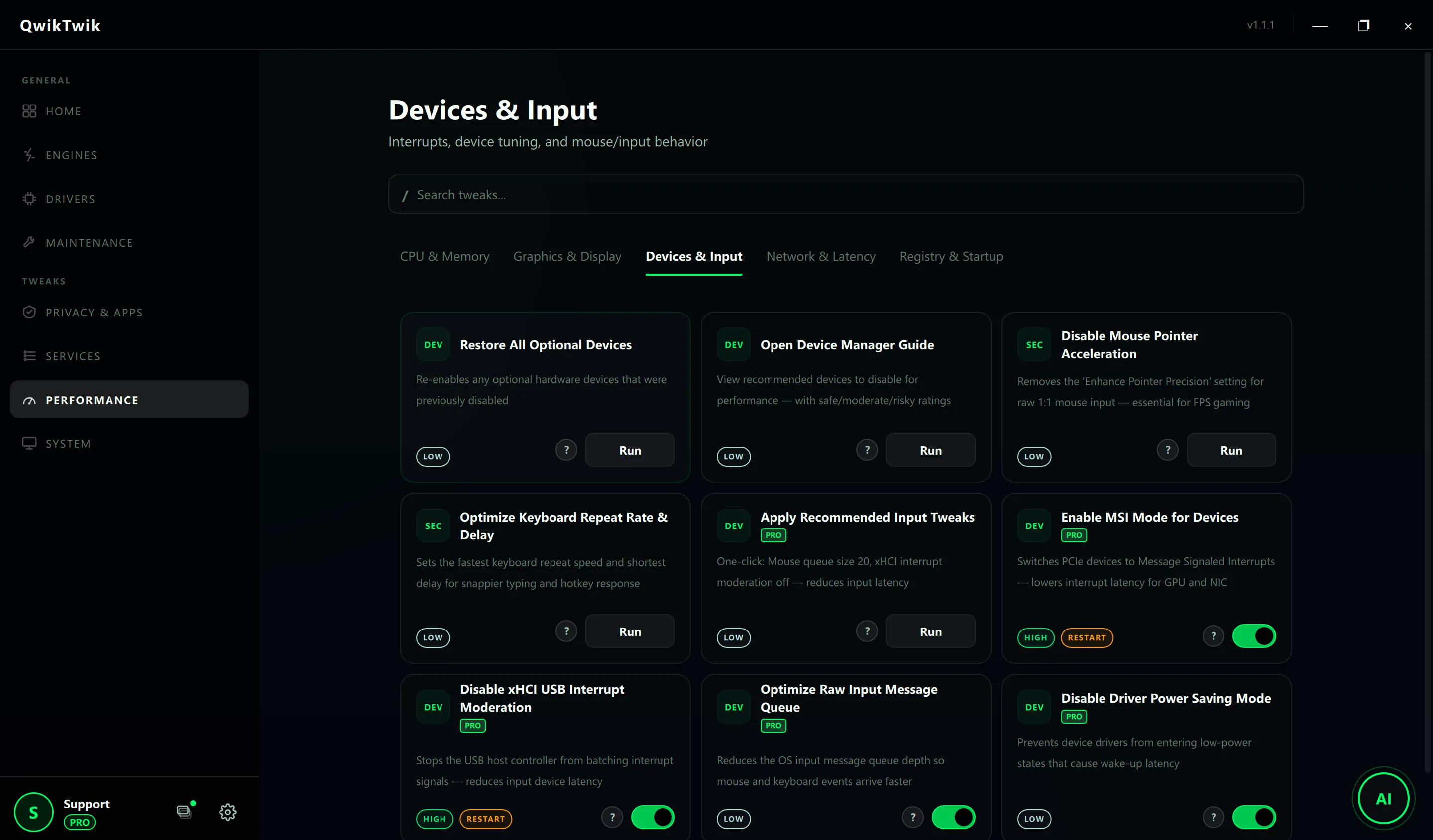
- Performance > Devices & Input: Disable Mouse Pointer Acceleration, Optimize Keyboard Repeat Rate & Delay.
- Performance > Devices & Input: Restore All Optional Devices before testing — clean device state matters.
- Maintenance > Cleanup & Cache: Trim RAM Working Sets to keep background load predictable.
Optional Pro tweaks
- Performance > Devices & Input: Apply Recommended Input Tweaks (mouse queue 20 + xHCI moderation off).
- Performance > Devices & Input: Enable MSI Mode for Devices, Disable xHCI USB Interrupt Moderation, Optimize Raw Input Message Queue.
- Performance > CPU & Memory: Set High-Precision Timer Resolution for sub-millisecond scheduling.
If something breaks
- Maintenance > Repair & Recovery > Device Repair: Re-enable USB Controllers, Re-enable HID Devices, Re-enable Mice & Pointing Devices.
- Maintenance > Repair & Recovery > Service Repair: Restore Audio Playback Services if perceived sync drifts.
- Home > Backups: Open System Restore Wizard when MSI Mode or xHCI changes destabilize a peripheral.
Validation checklist
- Mouse and keyboard response feel consistent after 20-30 minutes.
- No random hitching from background spikes while aiming or tracking.
- No new USB reconnect events in long sessions.
Common mistakes to avoid
- Mixing DPI/polling experiments with OS-level tuning in the same run.
- Using too many third-party low-latency scripts on top of each other.
- Forgetting to verify actual gameplay instead of only menu responsiveness.