How to fix stuttering in games on Windows
A troubleshooting flow for frame pacing spikes caused by drivers, storage, power, or background services.
The problem
Games stutter and hitch at random — frame times spike even when average FPS looks fine.
The fix
Separate shader-compilation stutter from system-contention stutter, then fix each layer one change at a time.
Why this guide matters
Stutter diagnosis must separate content compilation stutter from system contention stutter. They feel similar but require different fixes.
In practice, most persistent stutter cases are mixed: background load plus suboptimal graphics pipeline behavior. QwikTwik helps isolate both layers.
Before you start
- Reproduce stutter in a repeatable scene before changing settings.
- Keep your graphics preset fixed while testing OS-level changes.
- Log change order so you can revert the exact problematic step.
Step-by-step workflow
Identify stutter type
Apply this phase in isolation, then validate before moving forward. The goal is measurable improvement in stability and responsiveness, not maximum tweak count.
- Separate shader-compilation stutter from system-level stutter.
- Test with frame time graph enabled in the same scene.
- Note if spikes happen on combat, loading, or random intervals.
Remove common causes
Apply this phase in isolation, then validate before moving forward. The goal is measurable improvement in stability and responsiveness, not maximum tweak count.
- Clean install GPU drivers when frame pacing became unstable after updates.
- Verify game files and storage health for asset streaming issues.
- Disable overlays and background recording during benchmark runs.
Tune for consistency
Apply this phase in isolation, then validate before moving forward. The goal is measurable improvement in stability and responsiveness, not maximum tweak count.
- Use stable power and scheduler tuning.
- Cap FPS and keep a smooth frame pacing target.
- Save the best profile and avoid frequent random changes.
How to run this inside QwikTwik
Start from the Free tools to build a stable baseline. Each path below maps to a real tab in the QwikTwik desktop app — open the named tab and apply items in the listed order.
Free path
- Maintenance > Cleanup & Cache: Clear GPU Shader Cache and run full cleanup before troubleshooting.
- System > Windows Shell & UI: Disable All Windows Notifications, Optimize Visual Effects for Performance.
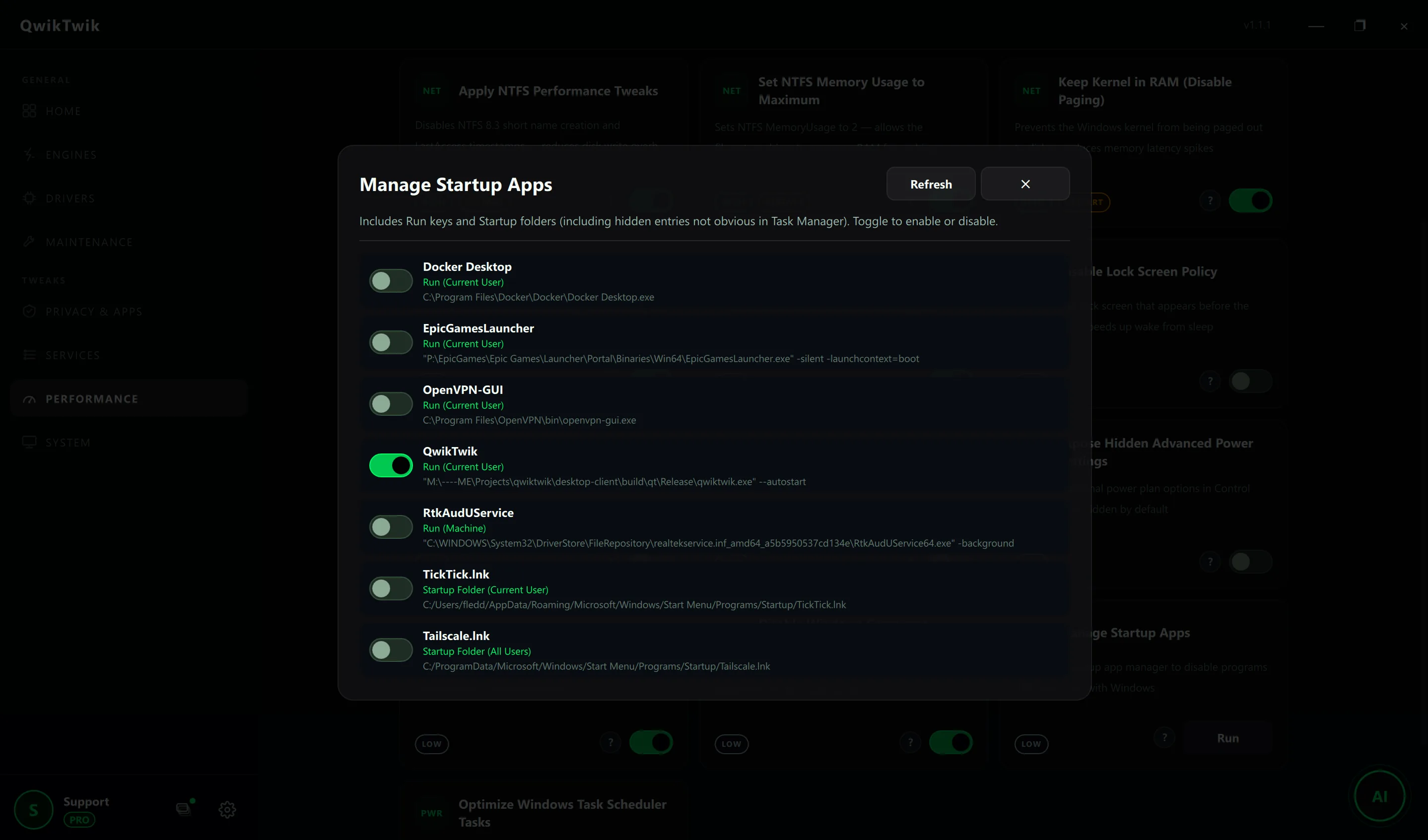
- Performance > Registry & Startup: Manage Startup Apps and Optimize Windows Task Scheduler Tasks to remove contention.
Optional Pro tweaks
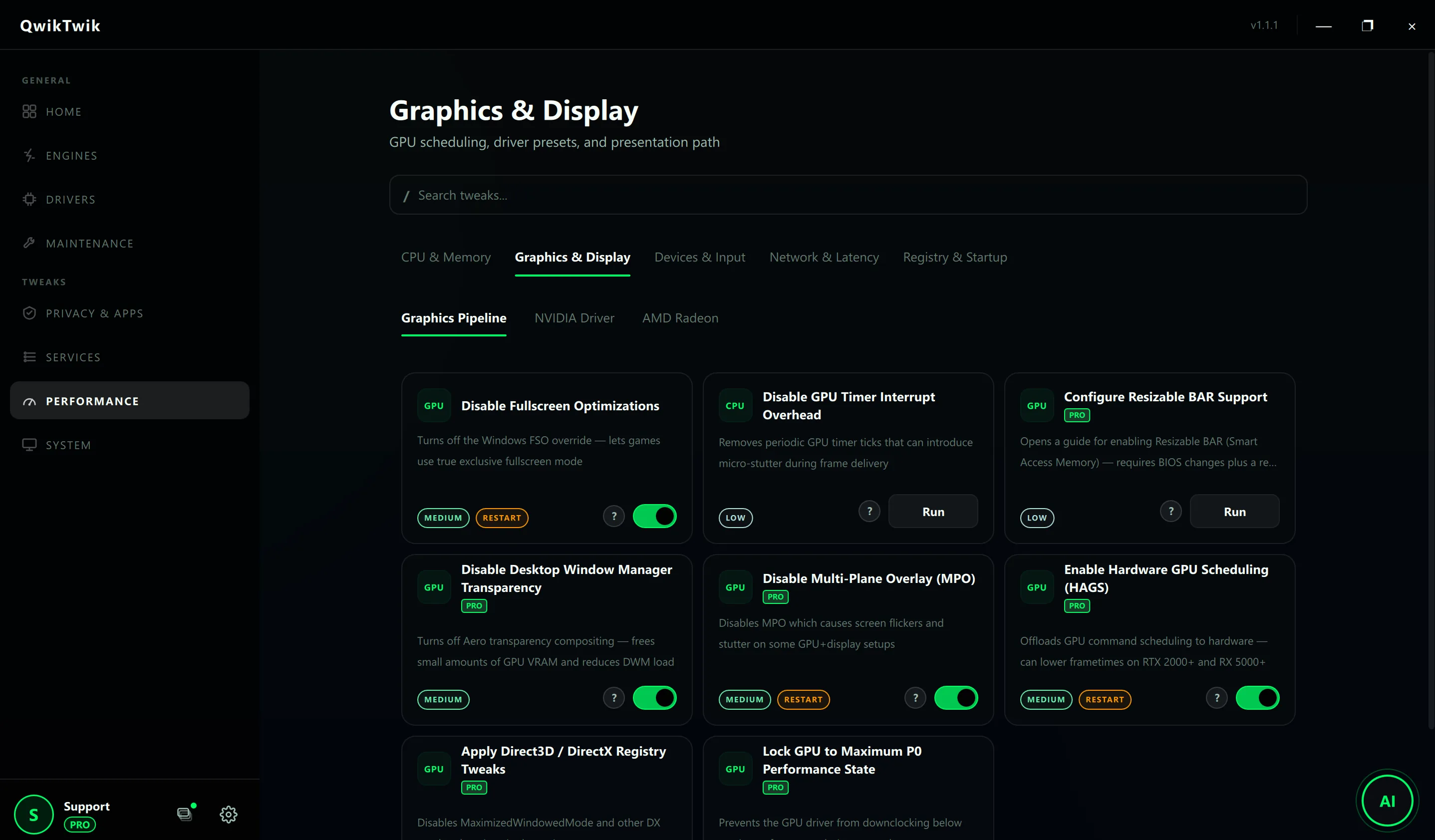
- Performance > Graphics & Display: Disable Multi-Plane Overlay (MPO), Enable Hardware GPU Scheduling (HAGS), Lock GPU to Maximum P0 — one at a time.
- Performance > CPU & Memory: Apply Recommended CPU Tweaks (Prioritize Foreground App, System Responsiveness 0) after baseline cleanup is stable.
- Performance > Devices & Input: Enable MSI Mode for Devices if frame pacing spikes correlate with peripherals.
If something breaks
- Maintenance > Repair & Recovery > System Repair: Restore Search / Indexing Policy, Restore Background Apps Policy.
- Maintenance > Repair & Recovery > System Repair: Restore Visual Effects Settings, Restore DWM Transparency if compositor regresses.
- Home > Backups: Open System Restore Wizard when MPO/HAGS combinations cause display flicker.
Validation checklist
- Frame-time spikes are less frequent in repeated pathing/combat tests.
- No new flicker or desktop composition issues after display tweaks.
- Long-session stability improves, not only first five minutes.
Common mistakes to avoid
- Changing drivers, graphics settings, and OS services all in one batch.
- Treating every stutter as GPU issue when background scheduling is the root cause.
- Keeping unstable overlay/capture stack active while benchmarking.