How to lower ping and fix network lag in games
Network-side and Windows-side checks to reduce jitter, packet delay, and unstable hit registration.
The problem
High ping, jitter, and rubber-banding ruin online matches — and you're not sure if it's Windows or your connection.
The fix
A measured baseline-change-retest loop using QwikTwik's network controls to cut jitter and packet loss without breaking your stack.
Why this guide matters
Lower ping is only one part of playable network performance. Jitter, packet loss, and route consistency often affect hit registration more than a small change in raw average ping.
Use QwikTwik network controls as a measured sequence: baseline test, one change, retest. This is the only reliable way to avoid placebo and keep your network stable.
Before you start
- Use the same server region and same connection type for each test.
- Pause background downloads and cloud sync tasks.
- Restart router if your line has been up for long periods with unstable jitter.
Step-by-step workflow
Fix local network bottlenecks
Apply this phase in isolation, then validate before moving forward. The goal is measurable improvement in stability and responsiveness, not maximum tweak count.
- Use wired Ethernet when possible for lower jitter.
- Limit background uploads during matches.
- Reboot router if bufferbloat spikes after long uptime.
Tune adapter and packet behavior
Apply this phase in isolation, then validate before moving forward. The goal is measurable improvement in stability and responsiveness, not maximum tweak count.
- Apply balanced NIC tuning and conservative low-latency TCP settings.
- Use QoS tagging where router and ISP path support it.
- Validate DNS and gateway latency before changing advanced settings.
Confirm with objective metrics
Apply this phase in isolation, then validate before moving forward. The goal is measurable improvement in stability and responsiveness, not maximum tweak count.
- Compare average ping and jitter in the same server region.
- Watch packet loss and retransmits over a full session.
- Keep a stable profile once the connection is predictable.
How to run this inside QwikTwik
Start from the Free tools to build a stable baseline. Each path below maps to a real tab in the QwikTwik desktop app — open the named tab and apply items in the listed order.
Free path
- Maintenance > Cleanup & Cache: Flush DNS Cache before each comparative test.
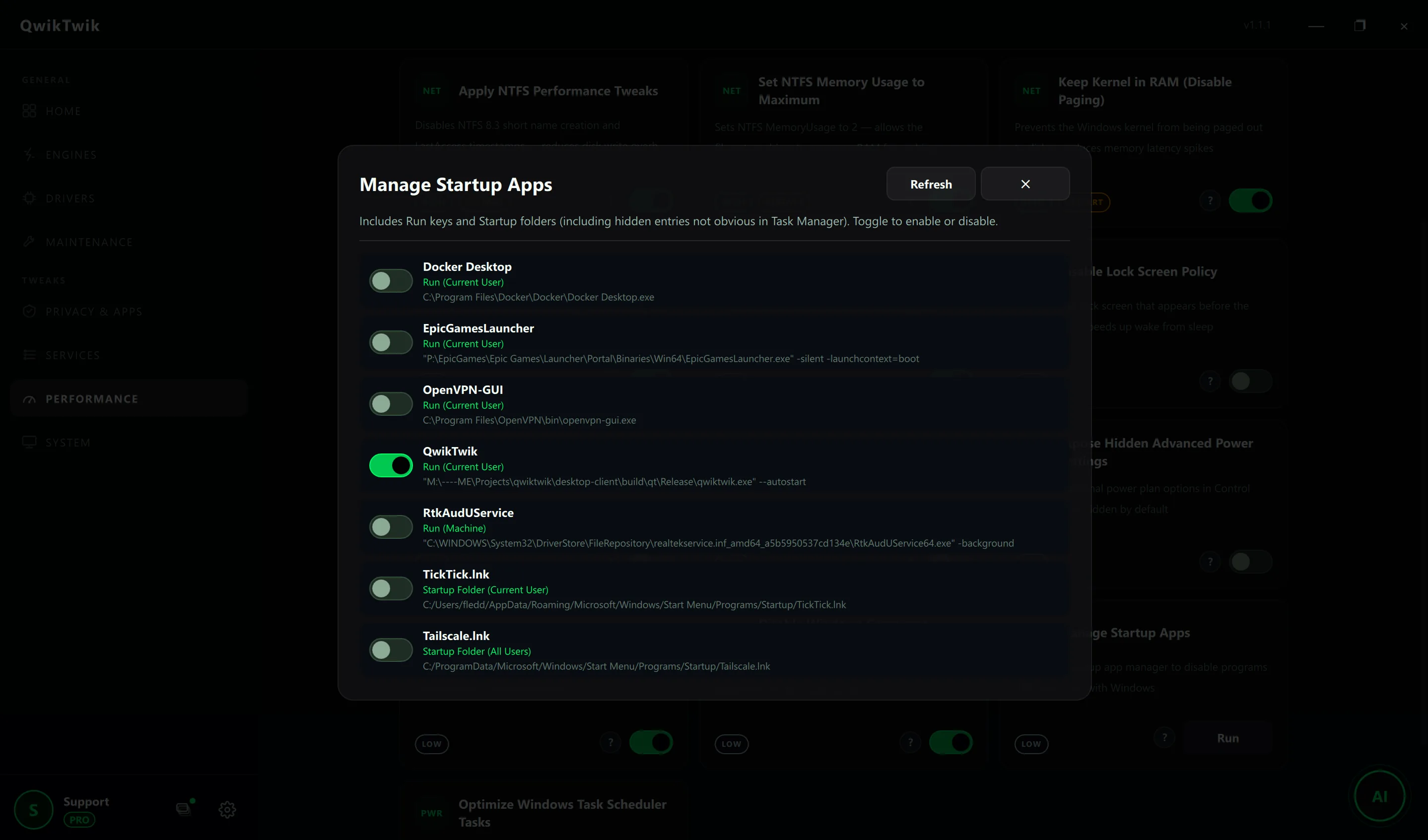
- Services > Service Groups: Disable Telemetry Service Group to remove background network noise.
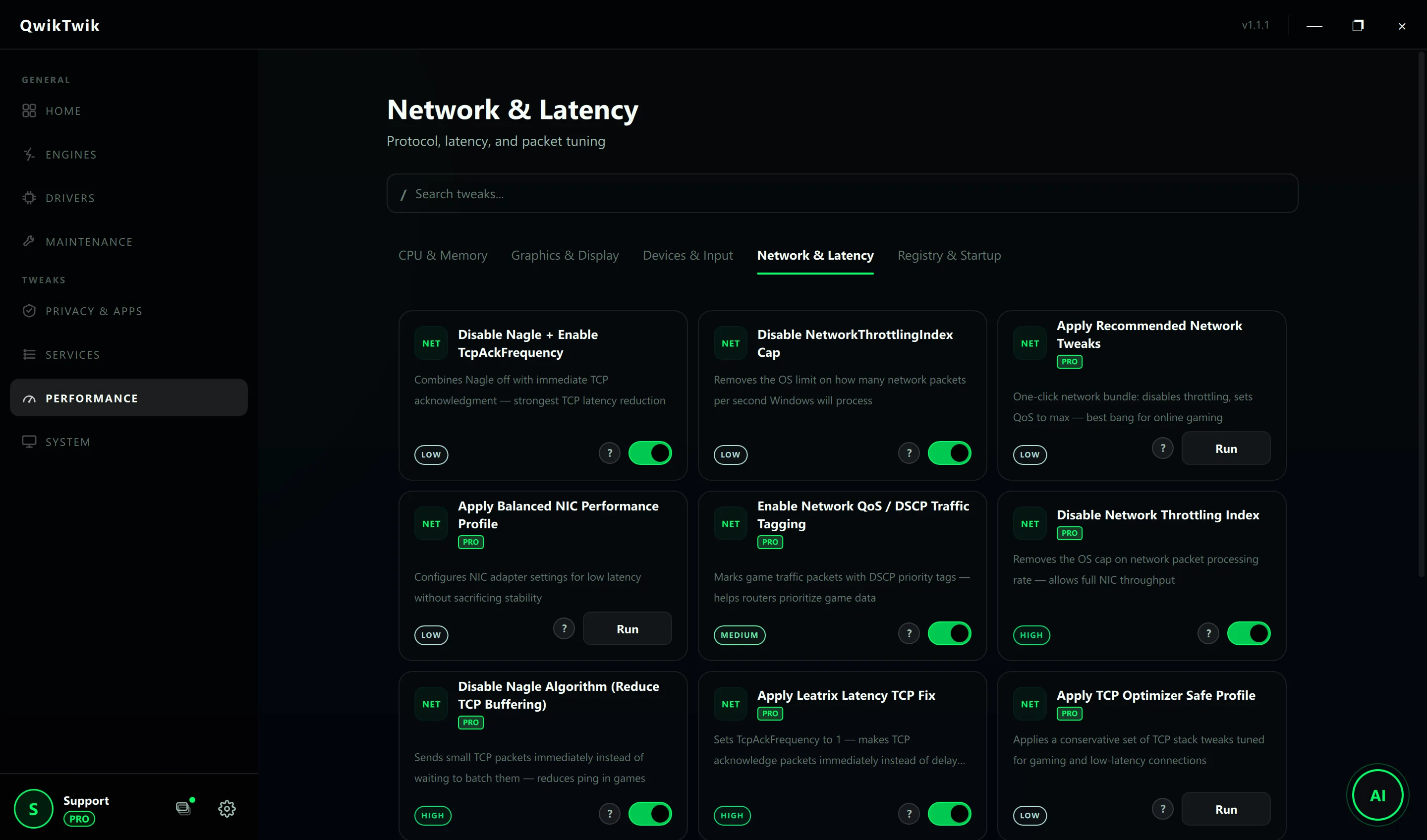
- Performance > Network & Latency: Disable Nagle + Enable TcpAckFrequency (the safe nra_1 combo).
Optional Pro tweaks
- Performance > Network & Latency: Apply Recommended Network Tweaks (no_rec — one-click bundle).
- Performance > Network & Latency: Apply Balanced NIC Performance Profile, Enable Network QoS / DSCP Traffic Tagging.
- Performance > Network & Latency: Apply Leatrix Latency TCP Fix and Set Interrupt Affinity for NIC for troubleshooting.
- Performance > Network & Latency: Prefer IPv4 Over IPv6 or Disable Teredo IPv6 Tunneling if NAT overhead is the issue.
If something breaks
- Maintenance > Repair & Recovery > Service Repair: Restore Wi-Fi Core Services, Restore Ethernet Profile Services.
- Maintenance > Repair & Recovery > Service Repair: Restore Xbox Networking Services if Xbox / matchmaking breaks.
- Maintenance > Repair & Recovery > System Repair: Restore IPv6 Support, Restore Teredo Tunneling after deep IP-stack tweaks.
Validation checklist
- Jitter and packet loss are reduced in repeated match sessions.
- No sudden spikes from local background traffic.
- Game feels more predictable under combat load.
Common mistakes to avoid
- Applying aggressive IPv6/Teredo changes when the root cause is local upload saturation.
- Testing across different servers and comparing non-equivalent runs.
- Ignoring router bufferbloat while blaming only Windows settings.