How to optimize SSD and NTFS settings for faster game loads
Storage tuning checklist to improve load consistency and reduce unnecessary I/O overhead for game libraries.
The problem
Game loads and asset streaming feel slower than your SSD should allow, with inconsistent load times.
The fix
Prepare clean storage, tune NTFS behaviour, and cut background I/O so load times stay consistent run to run.
Why this guide matters
Storage tuning is about consistency more than headline milliseconds. Real gains come from reducing unnecessary background I/O and preventing periodic contention.
Use QwikTwik storage and maintenance controls to prepare a clean disk environment first, then apply NTFS-related adjustments in a reversible order.
Before you start
- Check SSD health and ensure enough free space.
- Close heavy background download/sync tasks.
- Use same game and same loading scenario for each run.
Step-by-step workflow
Apply this phase in isolation, then validate before moving forward. The goal is measurable improvement in stability and responsiveness, not maximum tweak count.
- Keep sufficient free space on game and system drives.
- Verify SSD firmware and SMART health.
- Separate heavy downloads from active game drive when possible.
Tune file-system behavior
Apply this phase in isolation, then validate before moving forward. The goal is measurable improvement in stability and responsiveness, not maximum tweak count.
- Apply conservative NTFS and caching optimizations.
- Avoid unsafe tweaks that risk data integrity.
- Reboot and retest load times after each tuning batch.
Watch for real gains
Apply this phase in isolation, then validate before moving forward. The goal is measurable improvement in stability and responsiveness, not maximum tweak count.
- Measure cold and warm load times in identical conditions.
- Track texture-streaming smoothness in open-world games.
- Keep only tweaks that improve consistency.
How to run this inside QwikTwik
Start from the Free tools to build a stable baseline. Each path below maps to a real tab in the QwikTwik desktop app — open the named tab and apply items in the listed order.
Free path
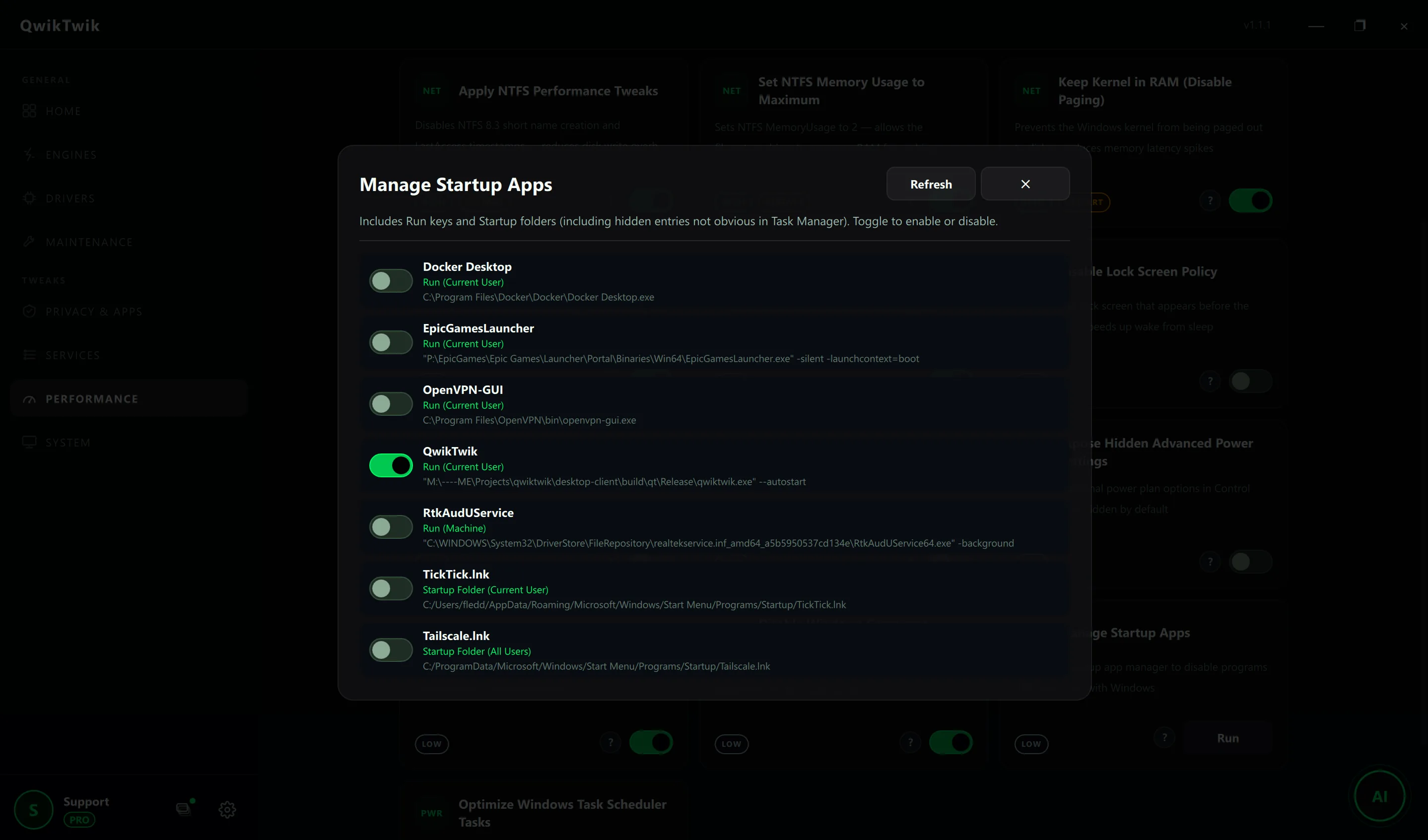
- Performance > Registry & Startup: Apply NTFS Performance Tweaks (disables 8.3 names and LastAccess timestamps).
- Performance > Registry & Startup: Set NTFS Memory Usage to Maximum, Keep Kernel in RAM.
- Maintenance > Cleanup & Cache: Clear Windows Prefetch Cache, Delete Temporary Files before storage timing tests.
- System > Windows Shell & UI: Disable Windows Search File Indexing to remove background disk pressure.
Optional Pro tweaks
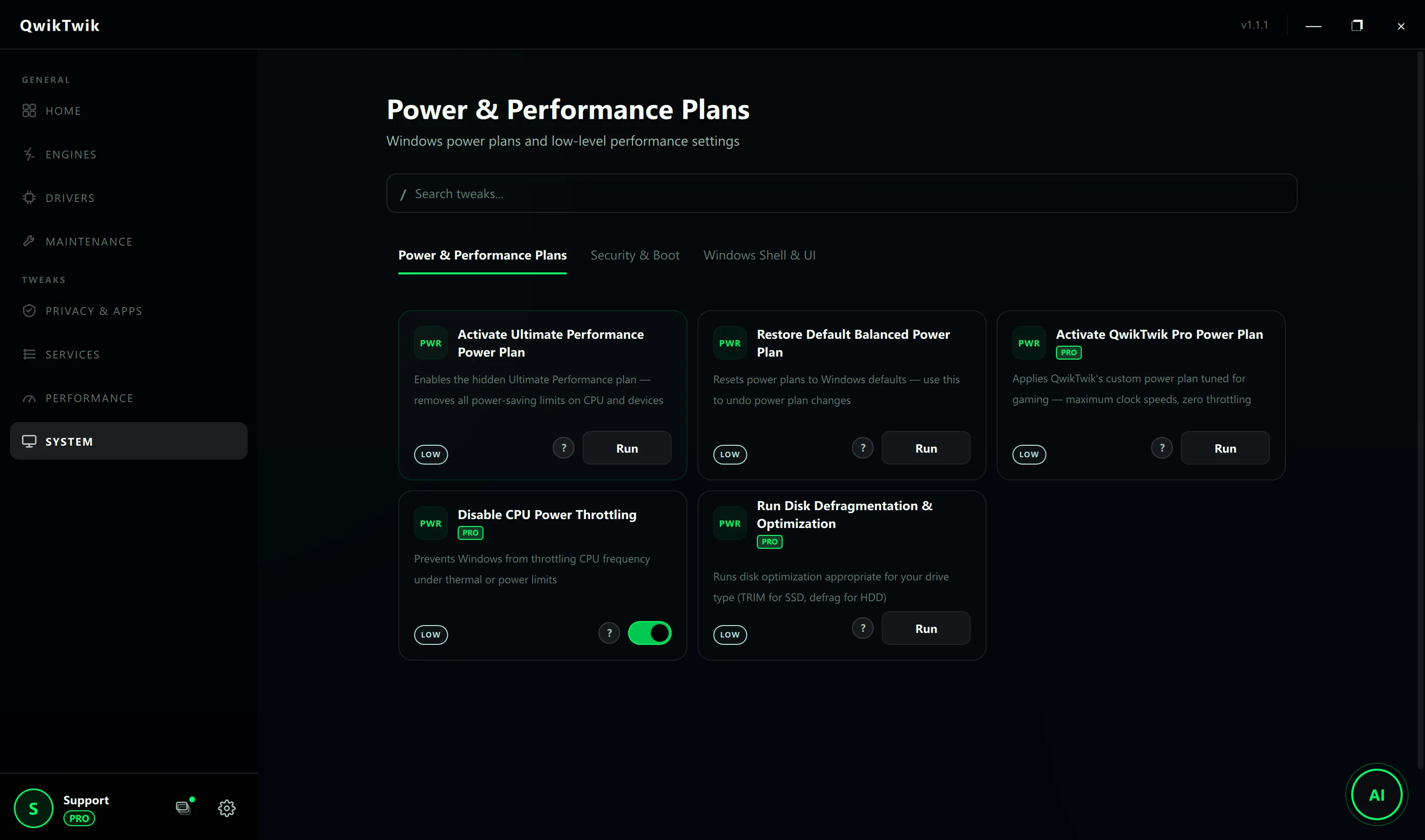
- System > Power & Performance Plans: Run Disk Defragmentation & Optimization (runs TRIM on SSDs, defrag on HDDs).
- System > Windows Shell & UI: Stop Windows from Auto-Installing Drivers to keep storage drivers stable.
If something breaks
- Maintenance > Repair & Recovery > System Repair: Restore Search / Indexing Policy if Explorer search regresses.
- Maintenance > Repair & Recovery > System Repair: Restore Startup Tasks Policy if scheduled NTFS jobs disappear.
- Home > Backups: Create a System Restore Point before high-impact storage policy changes.
Validation checklist
- Lower variance between repeated load attempts.
- Reduced asset streaming hitching during traversal.
- No file-system instability or unusual error logs.
Common mistakes to avoid
- Applying undocumented registry values without rollback path.
- Comparing non-equivalent runs with different background activity.
- Chasing tiny load-time gains while harming system reliability.