How to reduce Windows telemetry overhead for gaming
A privacy-first and performance-aware approach to reducing telemetry and background data collection noise.
The problem
Background telemetry and diagnostics keep the CPU and network busy during gameplay — and most guides break security while removing it.
The fix
Disable high-impact telemetry paths in reversible groups, keeping Defender and Update fully working.
Why this guide matters
Telemetry tuning should focus on reducing unnecessary background work, not on breaking security or update channels. Stable performance comes from balanced policy choices.
QwikTwik helps apply these changes in reversible groups so you can keep privacy improvements without creating long-term system drift.
Before you start
- Document the policy groups you disable.
- Keep Windows Defender and update essentials intact.
- Reboot and retest background load after each batch.
Step-by-step workflow
Target high-impact telemetry paths
Apply this phase in isolation, then validate before moving forward. The goal is measurable improvement in stability and responsiveness, not maximum tweak count.
- Adjust diagnostics and feedback settings first.
- Disable optional consumer and recommendation content.
- Keep security telemetry required by your environment.
Reduce recurring background noise
Apply this phase in isolation, then validate before moving forward. The goal is measurable improvement in stability and responsiveness, not maximum tweak count.
- Trim non-essential scheduled tasks linked to consumer features.
- Keep update and defender paths functional.
- Monitor background CPU and network activity after changes.
Maintain safe reversibility
Apply this phase in isolation, then validate before moving forward. The goal is measurable improvement in stability and responsiveness, not maximum tweak count.
- Document changed policies and services.
- Test after monthly Windows updates.
- Use revertable profiles to prevent long-term breakage.
How to run this inside QwikTwik
Start from the Free tools to build a stable baseline. Each path below maps to a real tab in the QwikTwik desktop app — open the named tab and apply items in the listed order.
Free path
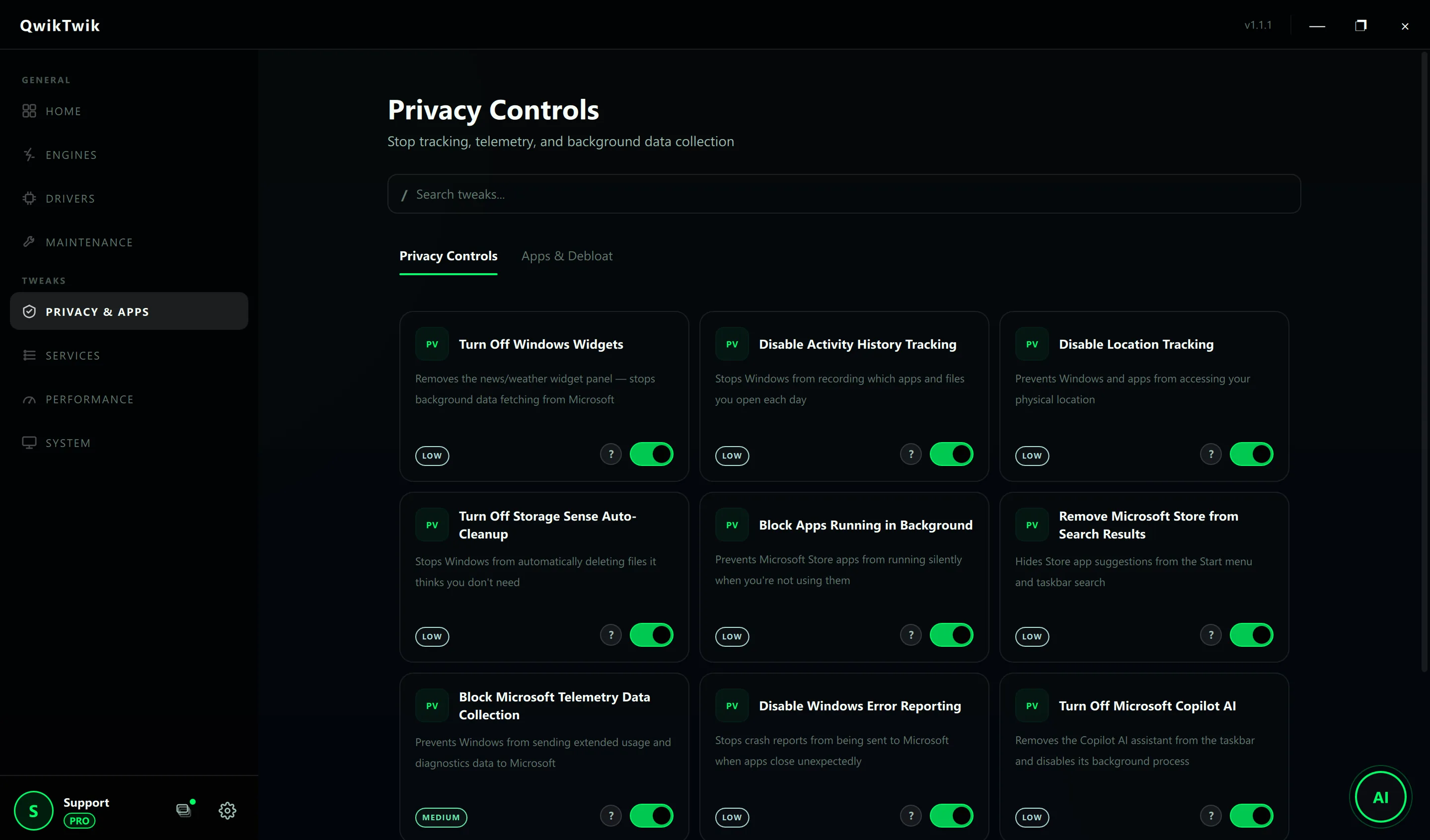
- Privacy & Apps > Privacy Controls: Block Microsoft Telemetry Data Collection, Disable Activity History Tracking, Disable Windows Error Reporting.
- Privacy & Apps > Privacy Controls: Turn Off Microsoft Copilot AI, Disable Xbox Background Services if unused.
- Services > Service Groups: Disable Telemetry Service Group, Disable Diagnostics Service Group.
- Services > Individual Services: Disable DiagTrack, Disable dmwappushservice, Disable PcaSvc for finer control.
Optional Pro tweaks
- No Pro bundle is required — telemetry control is intentionally a Free-tier path.
- If you want a deeper trim: Performance > Registry & Startup > Disable Windows Consumer Features.
If something breaks
- Maintenance > Repair & Recovery > Service Repair: Restore Windows Error Reporting Service, Restore Diagnostics Services.
- Maintenance > Repair & Recovery > System Repair: Restore Error Reporting Policy if reporting needs to come back.
- Services > Individual Services: re-toggle the disabled services back to default if updates start failing.
Validation checklist
- Background CPU/network chatter drops during idle and gameplay.
- No broken update and security workflows.
- No recurring policy conflicts after reboot.
Common mistakes to avoid
- Disabling critical security/update paths under the label of privacy.
- Applying duplicate policy packs from multiple tools.
- Not tracking which exact setting caused a regression.