Critical Windows 11 Services That Break Windows: Essential Services You Should Never Disable
Disabling the wrong Windows 11 services can cause system crashes, boot failures, and complete system instability. Learn which critical services keep your system running and why touching them will break Windows.
Critical Windows 11 Services That Break Windows: Essential Services You Should Never Disable
Windows 11 runs dozens of background services that handle everything from network connectivity to audio playback. While disabling unnecessary services can improve performance, touching the wrong ones will cause immediate system crashes, boot failures, or complete Windows instability. This guide identifies the critical Windows 11 services that break Windows when disabled and explains why each one is essential for system operation.
Core System Services That Will Break Windows
These services form the foundation of Windows 11 operation. Disabling any of them will cause immediate or delayed system failures that may require a complete Windows reinstall to fix.
Cryptographic Services
The problem
System fails to verify digital signatures, Windows Update breaks, and security features stop working
The fix
Keep Cryptographic Services running at all times - it handles certificate validation and encryption for the entire system
Cryptographic Services manages digital certificates and encryption throughout Windows. Without it, Windows cannot verify software signatures, process Windows Updates, or maintain security protocols. Disabling this service will prevent system updates and may cause applications to fail security checks.
DHCP Client
The problem
Complete network connectivity loss and inability to obtain IP addresses automatically
The fix
Never disable DHCP Client unless using only static IP addresses on all network connections
The DHCP Client service automatically obtains IP addresses from your router or network. Even if you think you use static IP addresses, Windows relies on this service for various network functions. Disabling it will break internet connectivity and local network access.
Plug and Play
The problem
Hardware devices stop working and new hardware cannot be detected or installed
The fix
Keep Plug and Play enabled to maintain hardware compatibility and device detection
Plug and Play handles hardware detection and driver installation for all connected devices. Without it, your graphics card, USB devices, audio hardware, and other components may stop functioning. This service is critical for maintaining hardware compatibility.
Audio and Media Services You Cannot Disable
Windows Audio
The problem
Complete audio system failure across all applications and games
The fix
Keep Windows Audio and Windows Audio Endpoint Builder services running for any sound functionality
Windows Audio manages all sound output and input on your system. Disabling it will eliminate audio in games, media players, system sounds, and communication applications. Even if you think you have alternative audio drivers, Windows applications depend on this service.
Power and System Management Services
Power Service
The problem
Power management failures, inability to sleep or hibernate, and potential hardware damage from improper shutdown
The fix
Never disable the Power service as it manages critical power states and hardware protection
The Power service controls sleep modes, hibernation, shutdown procedures, and power management for hardware components. Disabling it can prevent proper system shutdown, cause data loss, and potentially damage hardware through improper power state transitions.
Windows Event Log
The problem
System becomes unable to log errors, making troubleshooting impossible when problems occur
The fix
Keep Windows Event Log running to maintain system diagnostics and error tracking capabilities
Windows Event Log records system events, errors, and diagnostic information that becomes essential when troubleshooting problems. Many system components and applications depend on event logging functionality to operate correctly.
What Causes Critical Process Died in Windows 11?
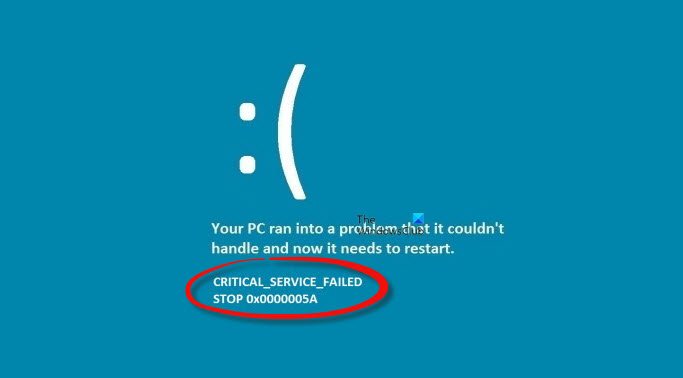
The Critical Process Died error occurs when essential Windows processes or services fail unexpectedly. This blue screen error can result from disabling critical services, corrupted system files, driver conflicts, failed updates, or disk corruption. When you disable services that Windows considers essential, the system may immediately crash or fail during the next boot cycle.
Always create a system restore point before modifying any Windows services. If you disable a critical service and cannot boot Windows, you may need to use Safe Mode or Windows Recovery Environment to restore functionality.
Storage and File System Services
File History Service
The problem
Backup functionality breaks and file recovery options become unavailable
The fix
Keep File History Service enabled if you use Windows backup features or may need file recovery
File History Service manages automatic file backups and version history. While not immediately critical for system operation, disabling it eliminates important data protection features that become essential during hardware failures or accidental file deletion.
Print Spooler
The problem
All printing functionality stops working across the entire system
The fix
Keep Print Spooler running unless you never print documents or use print-to-PDF features
Print Spooler manages all printing operations, including print-to-PDF functionality used by many applications. Even if you do not have a physical printer, many programs rely on print drivers for document export and PDF generation features.

Safe Service Optimization with QwikTwik
QwikTwik provides intelligent service optimization that identifies truly unnecessary services while protecting critical system functions. The application analyzes your specific hardware configuration and usage patterns to recommend safe service modifications without risking system stability.
Use QwikTwik's service analyzer to identify resource-heavy services that can be safely disabled for your specific system configuration. The tool maintains a whitelist of critical services to prevent accidental system damage.
Windows 11 Services to Disable for Gaming Performance
While many services can be safely disabled for gaming performance, focus on non-critical services like Windows Search, Superfetch (SysMain), and certain telemetry services. Never disable core system services, network services, or hardware-related services when optimizing for gaming.
- Windows Search - can be disabled if you do not use file search features
- SysMain (Superfetch) - may improve performance on systems with limited RAM
- Fax service - safe to disable unless you actually send faxes
- Windows Insider Service - unnecessary unless participating in preview programs
- Retail Demo Service - safe to disable on personal computers
How to Safely Modify Windows Services
When modifying Windows services, always use the Services management console rather than third-party tools or registry edits. Set services to Manual startup type instead of Disabled when possible, as this allows Windows to start them when needed while reducing resource usage during normal operation.
- Press Windows + R and type services.msc to open Services management
- Create a system restore point before making changes
- Right-click the service and select Properties
- Change Startup type to Manual instead of Disabled when possible
- Test system functionality after each change
- Revert changes immediately if problems occur
The problem
System becomes unstable or fails to boot after disabling services
The fix
Boot into Safe Mode, open Services management, and re-enable recently disabled services or use System Restore to revert changes
Modern Windows 11 systems are generally well-optimized out of the box. Focus service optimization efforts on systems with limited RAM or older hardware where every resource improvement matters for performance.
What causes Critical Process Died in Windows 11?
Critical Process Died errors result from essential Windows processes failing due to corrupted system files, disabled critical services, driver conflicts, failed updates, or hardware issues. Disabling services like Cryptographic Services or DHCP Client commonly triggers this error.
Which Windows 11 services are safe to disable for gaming?
Safe services to disable include Windows Search, SysMain (Superfetch), Fax service, and Retail Demo Service. Never disable core services like Windows Audio, DHCP Client, Plug and Play, or Cryptographic Services as these will break system functionality.
How do I fix Windows if I disabled a critical service?
Boot into Safe Mode, open Services management (services.msc), find the disabled service, and change its startup type back to Automatic. Alternatively, use System Restore to revert to a point before the service was disabled.
Should I use scripts to disable Windows 11 services automatically?
Avoid automated scripts for service modification as they may disable critical services without considering your specific hardware configuration. Manual service management or tools like QwikTwik that analyze your system provide safer optimization.