How to Clean Startup Apps for Better Game Stability
Unnecessary startup programs consume system resources and can cause game crashes, stuttering, and performance drops. Learn how to identify and disable problematic startup apps using Windows built-in tools and QwikTwik optimization features.
How to Clean Startup Apps for Better Game Stability
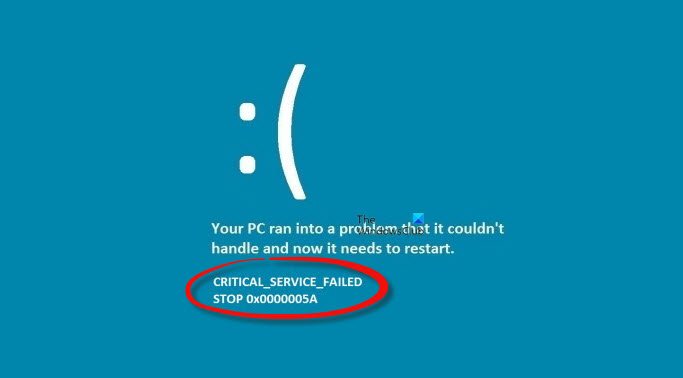
When you start your Windows computer, dozens of programs automatically launch in the background. These startup apps consume valuable system resources that your games need for smooth performance. Learning how to clean startup apps for better game stability can eliminate crashes, reduce stuttering, and free up memory for demanding titles.
Background applications compete with games for CPU cycles, RAM, and disk access. A single resource-heavy startup program can cause frame drops, loading delays, or complete system freezes during gameplay. By identifying and disabling unnecessary startup apps, you create a cleaner environment where games can access the full power of your hardware.
Why Startup Apps Affect Gaming Performance
Modern games require significant system resources to maintain stable performance. When multiple programs launch at startup, they create resource conflicts that manifest as gaming issues. Common problems include sudden frame rate drops during intense scenes, longer loading times between levels, and audio stuttering during online matches.
Startup applications also consume network bandwidth through automatic updates and cloud synchronization. This background network activity can increase ping times and cause connection instability in multiplayer games. Additionally, some startup programs trigger Windows notifications that can interrupt fullscreen games or cause temporary performance hitches.
Never disable essential Windows services or security software through startup management. Focus only on third-party applications and optional Windows features that you don't actively use during gaming sessions.
How to Disable Startup Programs Windows 10 and 11
Windows provides built-in tools for managing startup applications through Task Manager. This method works identically in both Windows 10 and Windows 11, giving you direct control over which programs launch automatically.
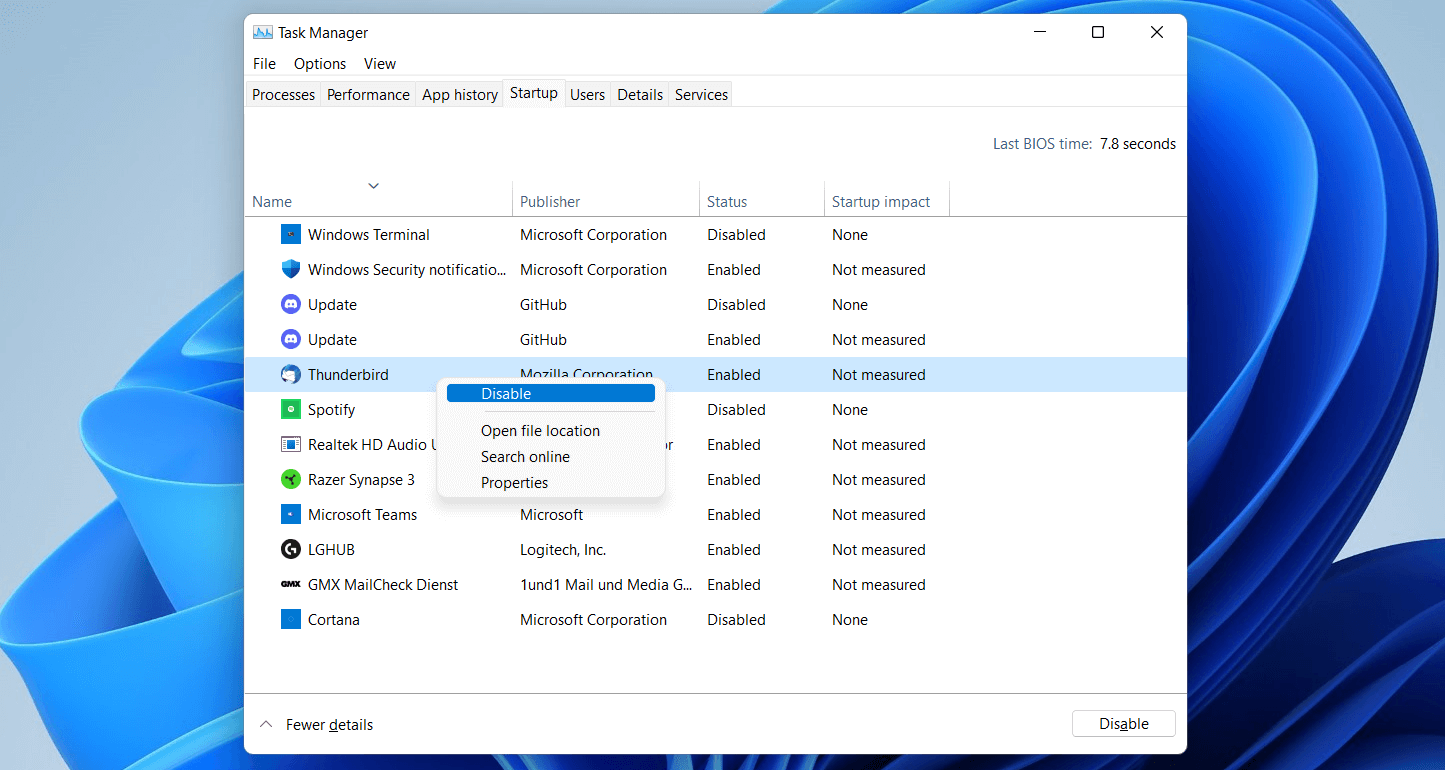
Press Ctrl+Shift+Esc to open Task Manager, then click the Startup tab. You'll see a list of all programs configured to launch at boot, along with their startup impact rating. Programs marked as "High" impact have the greatest effect on boot time and system performance.
- Right-click any program you want to disable
- Select "Disable" from the context menu
- The program status changes to "Disabled"
- Repeat for other unnecessary applications
- Restart your computer to apply changes
Focus on disabling programs you don't need immediately after boot. Common candidates include media players, chat applications, cloud storage clients, and manufacturer software that came pre-installed with your computer. Keep essential programs like antivirus software and Windows Security enabled.
Turn Off Background Apps Windows 11
Windows 11 includes additional background app controls beyond traditional startup programs. These settings manage Microsoft Store apps and Windows features that run continuously in the background, even when you're not actively using them.
Open Windows Settings and navigate to Privacy & security, then Background apps. Here you can disable background activity for specific Microsoft Store applications or turn off background apps entirely. This prevents apps from consuming resources, checking for updates, or sending notifications while you're gaming.
The problem
Games experience random stuttering or frame drops during gameplay, especially when alt-tabbing between applications.
The fix
Disable background apps in Windows 11 Settings > Privacy & security > Background apps. Turn off the toggle for "Let apps run in the background" or disable individual apps that you don't need active during gaming sessions.
How to Perform a Clean Boot in Windows 11
A clean boot starts Windows with only essential services and drivers, eliminating all third-party startup interference. This diagnostic method helps identify specific programs causing game stability issues and provides the cleanest possible environment for gaming.
Press Windows+R, type "msconfig" and press Enter to open System Configuration. On the General tab, select "Selective startup" and uncheck "Load startup items." Switch to the Services tab, check "Hide all Microsoft services," then click "Disable all" to turn off third-party services.
- Open System Configuration (msconfig)
- Select "Selective startup" on General tab
- Uncheck "Load startup items"
- Go to Services tab and hide Microsoft services
- Click "Disable all" for remaining services
- Apply changes and restart computer
After restarting in clean boot mode, test your games for stability improvements. If problems disappear, gradually re-enable services and startup items to identify the specific cause. Remember to return to normal startup mode once you've completed troubleshooting.
Using QwikTwik for Advanced Startup Management
While Windows Task Manager provides basic startup control, QwikTwik offers advanced features for detailed system optimization. The software analyzes startup impact more thoroughly than Windows' built-in tools and provides detailed recommendations for each program.
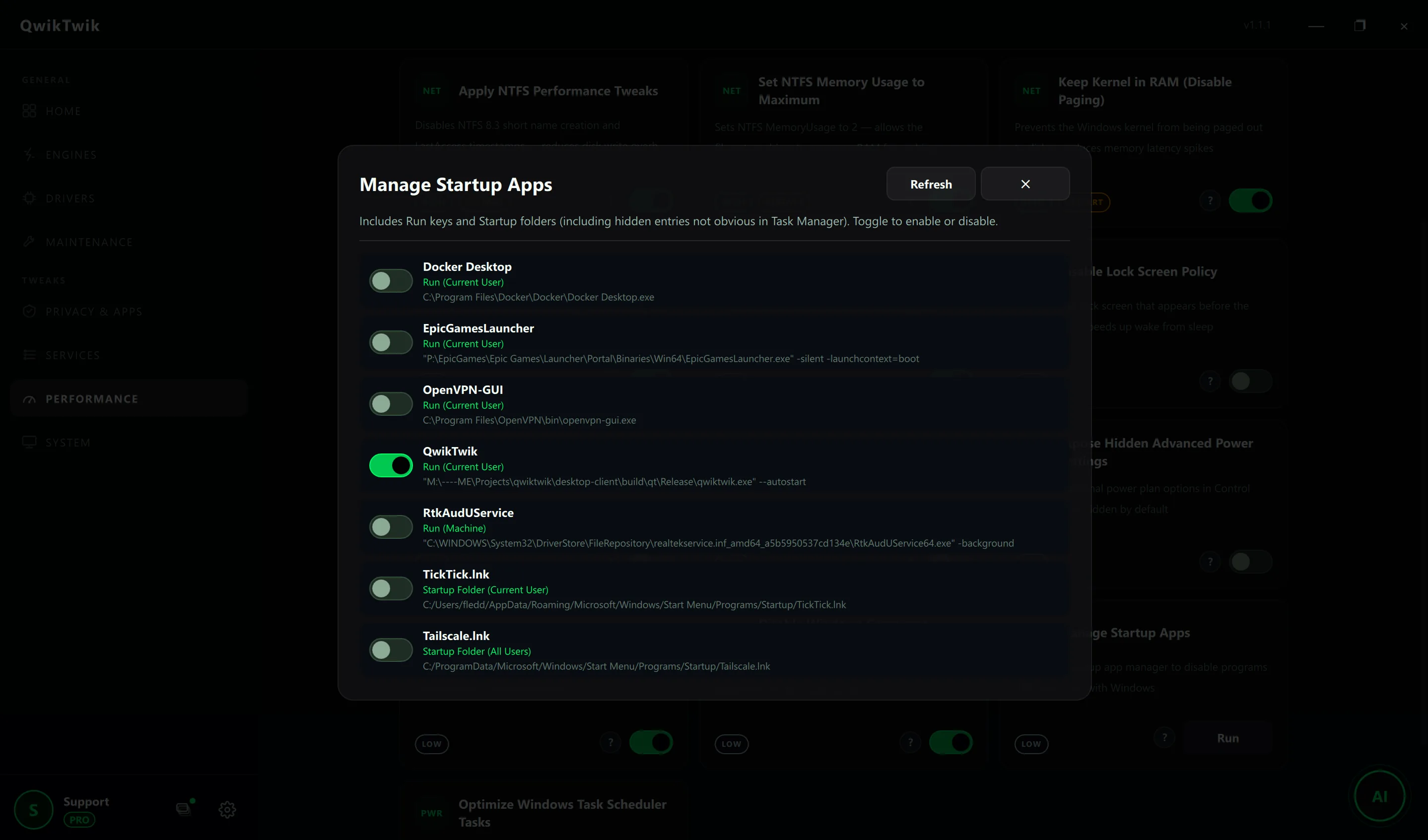
QwikTwik's startup manager categorizes programs by their actual resource usage rather than just startup time impact. This helps identify programs that may start quickly but consume significant resources during operation. The software also creates restore points before making changes, allowing safe experimentation with different configurations.
The tool includes gaming-specific optimization profiles that automatically configure startup settings for maximum game performance. These profiles disable known problematic applications while preserving essential system functions and security software.
Create a gaming-optimized startup profile in QwikTwik that you can quickly activate before gaming sessions. This allows you to maintain normal productivity software during regular use while ensuring clean system resources for games.
Identifying Problem Startup Applications
Certain types of startup programs are more likely to cause gaming issues than others. Media software, cloud synchronization tools, and system monitoring utilities often consume significant resources or interfere with game processes.
Graphics card software suites from NVIDIA, AMD, and Intel sometimes include unnecessary components that run at startup. While the core drivers are essential, features like automatic game optimization, streaming tools, and social features can be disabled without affecting basic graphics performance.
- Adobe updaters and background services
- Skype, Discord, or other chat applications
- Dropbox, OneDrive, or cloud storage sync
- iTunes Helper and Apple software components
- Java Update Scheduler and browser plugins
- Manufacturer bloatware and trial software
- System monitoring and overclocking utilities
The problem
Specific games crash or freeze shortly after launching, but system runs normally otherwise.
The fix
Perform a clean boot to isolate the problematic startup program. Test the game in clean boot mode, then gradually re-enable startup items until you identify which program causes the conflict. Permanently disable or uninstall the conflicting software.
Monitoring Startup Impact on Game Performance
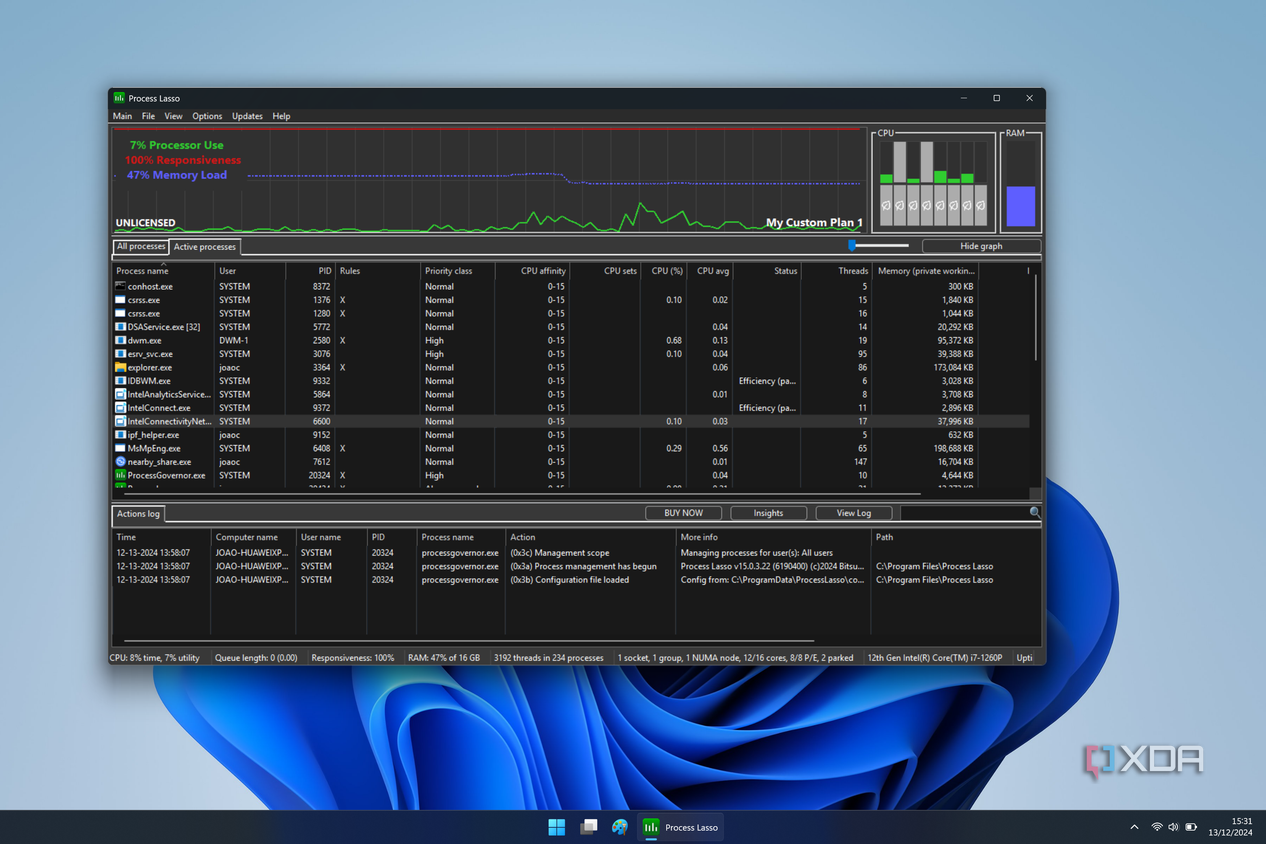
After cleaning startup applications, monitor your system's performance to measure improvements. Use Windows Task Manager's Performance tab to check CPU, memory, and disk usage before launching games. Lower baseline resource consumption indicates successful startup optimization.
Track specific gaming metrics like frame rates, loading times, and system responsiveness during gameplay. Many games include built-in performance overlays, or you can use tools like MSI Afterburner to monitor real-time performance data. Compare these metrics before and after startup cleanup to quantify improvements.
Pay attention to system stability during extended gaming sessions. Properly optimized startup configurations should eliminate random crashes, reduce memory leaks, and maintain consistent performance over time. If problems persist after startup cleanup, investigate other potential causes like driver issues or hardware problems.
Is Disabling Startup Apps Good?
Disabling unnecessary startup applications provides clear benefits for gaming performance and overall system responsiveness. Reduced resource consumption at boot means more available memory and CPU power for games, while fewer background processes minimize potential conflicts and interruptions.
However, disabling startup apps requires careful consideration of each program's function. Some applications provide important background services like security updates, system monitoring, or hardware management. The key is distinguishing between essential services and convenience features that can be launched manually when needed.
Modern Windows systems are designed to handle multiple startup programs efficiently, but gaming workloads benefit from maximum available resources. Strategic startup management creates an optimal balance between system functionality and gaming performance.
Is disabling startup apps good for gaming performance?
Yes, disabling unnecessary startup applications frees up system resources for games and reduces potential conflicts. Focus on removing non-essential programs while keeping security software and critical system services enabled.
How do I perform a clean boot in Windows 11?
Open System Configuration (msconfig), select Selective startup, uncheck Load startup items, then disable all non-Microsoft services. This creates a minimal startup environment for troubleshooting game issues.
Which startup programs should I disable for gaming?
Disable media players, chat applications, cloud storage sync, Adobe updaters, and manufacturer bloatware. Keep antivirus software, Windows Security, and essential hardware drivers enabled.
Can I use QwikTwik instead of Windows Task Manager?
QwikTwik provides more detailed analysis and gaming-specific optimization profiles compared to Task Manager's basic startup controls. Both tools can manage startup programs, but QwikTwik offers advanced features for detailed system optimization.