How to debloat Windows without breaking core features
Safe debloat checklist that preserves update reliability, security tooling, and required services.
The problem
Windows ships with bloatware and background apps you don't want — but aggressive debloat scripts break Update, Store, and drivers.
The fix
A layered, reversible debloat strategy that removes the noise while keeping every core Windows path intact.
Why this guide matters
Safe debloat means preserving core Windows paths while removing noise. If update, store, or driver workflows break, your optimization becomes expensive technical debt.
The best debloat strategy is layered: apps, startup, and selected policies first, then re-test. QwikTwik gives enough control to do this without blind one-click destruction.
Before you start
- Create restore point and write down the category changes you apply.
- Do not remove components you actively use for work or compatibility.
- Retain recovery paths for Store and optional components.
Step-by-step workflow
Choose a safe baseline
Apply this phase in isolation, then validate before moving forward. The goal is measurable improvement in stability and responsiveness, not maximum tweak count.
- Remove non-essential apps first, not core system components.
- Avoid one-click scripts that disable critical update services.
- Keep restore checkpoints before every major cleanup pass.
Debloat in layers
Apply this phase in isolation, then validate before moving forward. The goal is measurable improvement in stability and responsiveness, not maximum tweak count.
- Start with startup cleanup and scheduled task trimming.
- Then reduce telemetry and consumer features if needed.
- Retest Microsoft Store, Windows Update, and gaming services.
Lock in a maintainable setup
Apply this phase in isolation, then validate before moving forward. The goal is measurable improvement in stability and responsiveness, not maximum tweak count.
- Document every removed component for future troubleshooting.
- Apply updates regularly to avoid outdated build issues.
- Use reversible profiles rather than permanent hard removals.
How to run this inside QwikTwik
Start from the Free tools to build a stable baseline. Each path below maps to a real tab in the QwikTwik desktop app — open the named tab and apply items in the listed order.
Free path
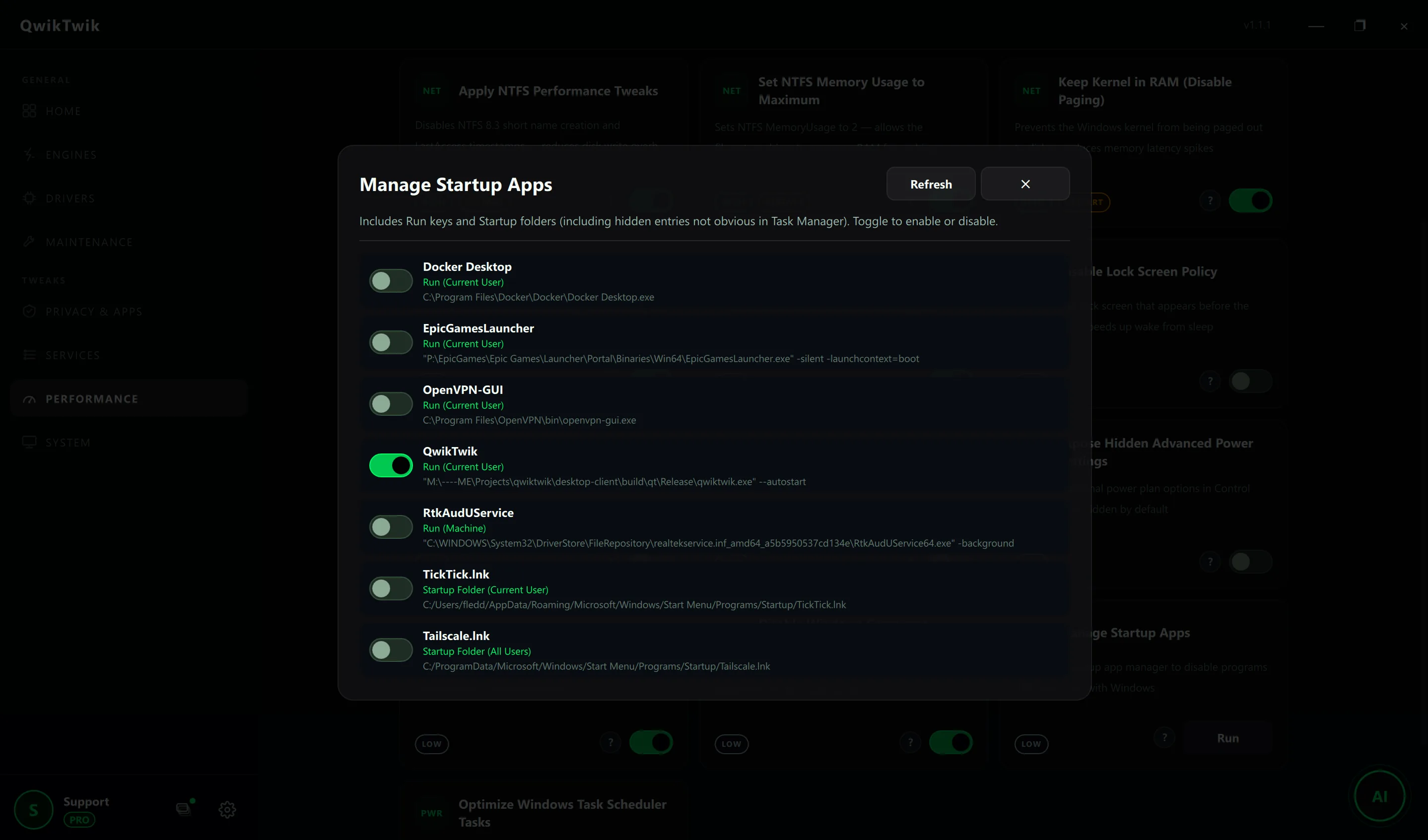
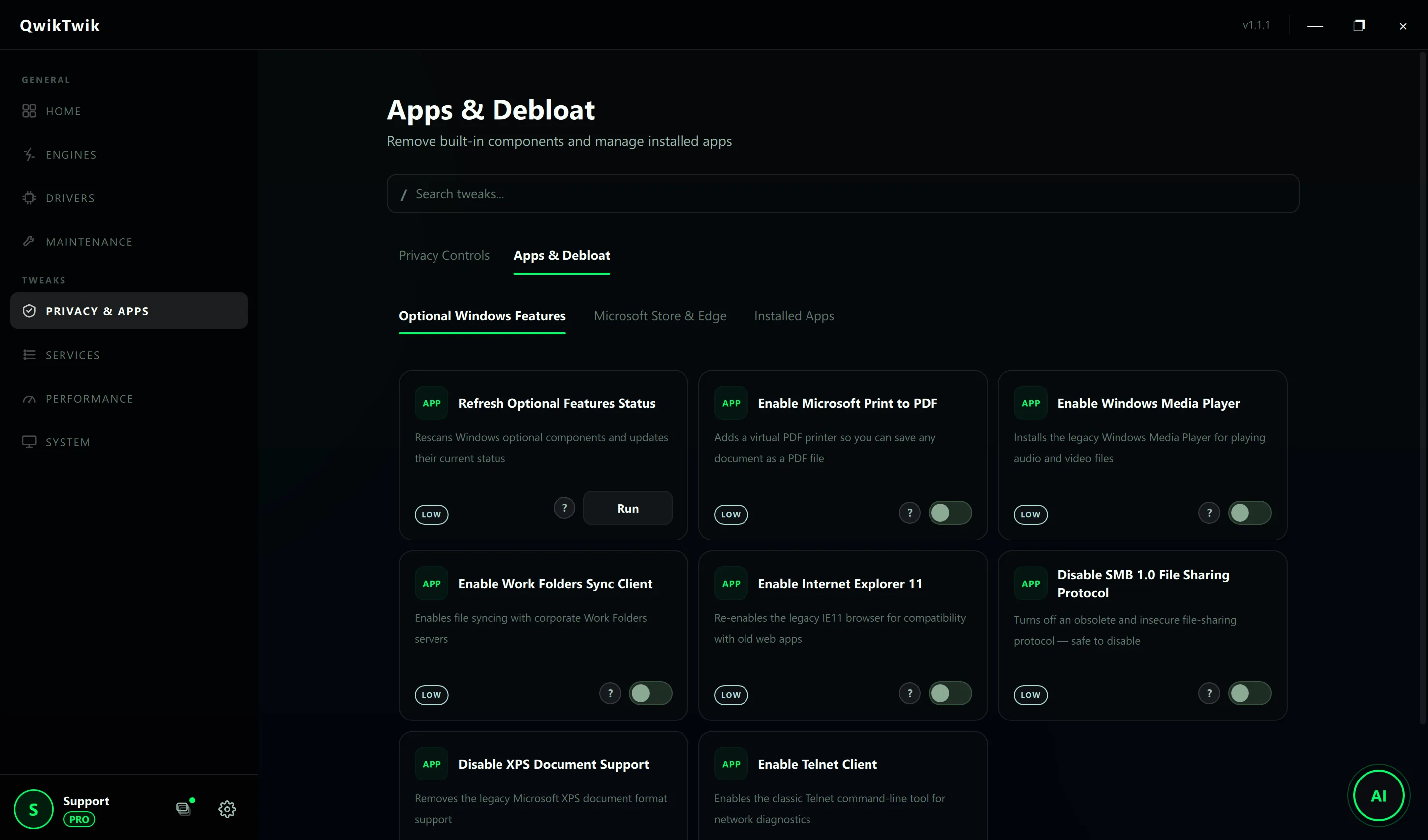
- Privacy & Apps > Apps & Debloat: use Installed Apps for selective removal first, not mass uninstall.
- Privacy & Apps > Apps & Debloat: Optional Windows Features and Microsoft Store & Edge — disable consumer features carefully.
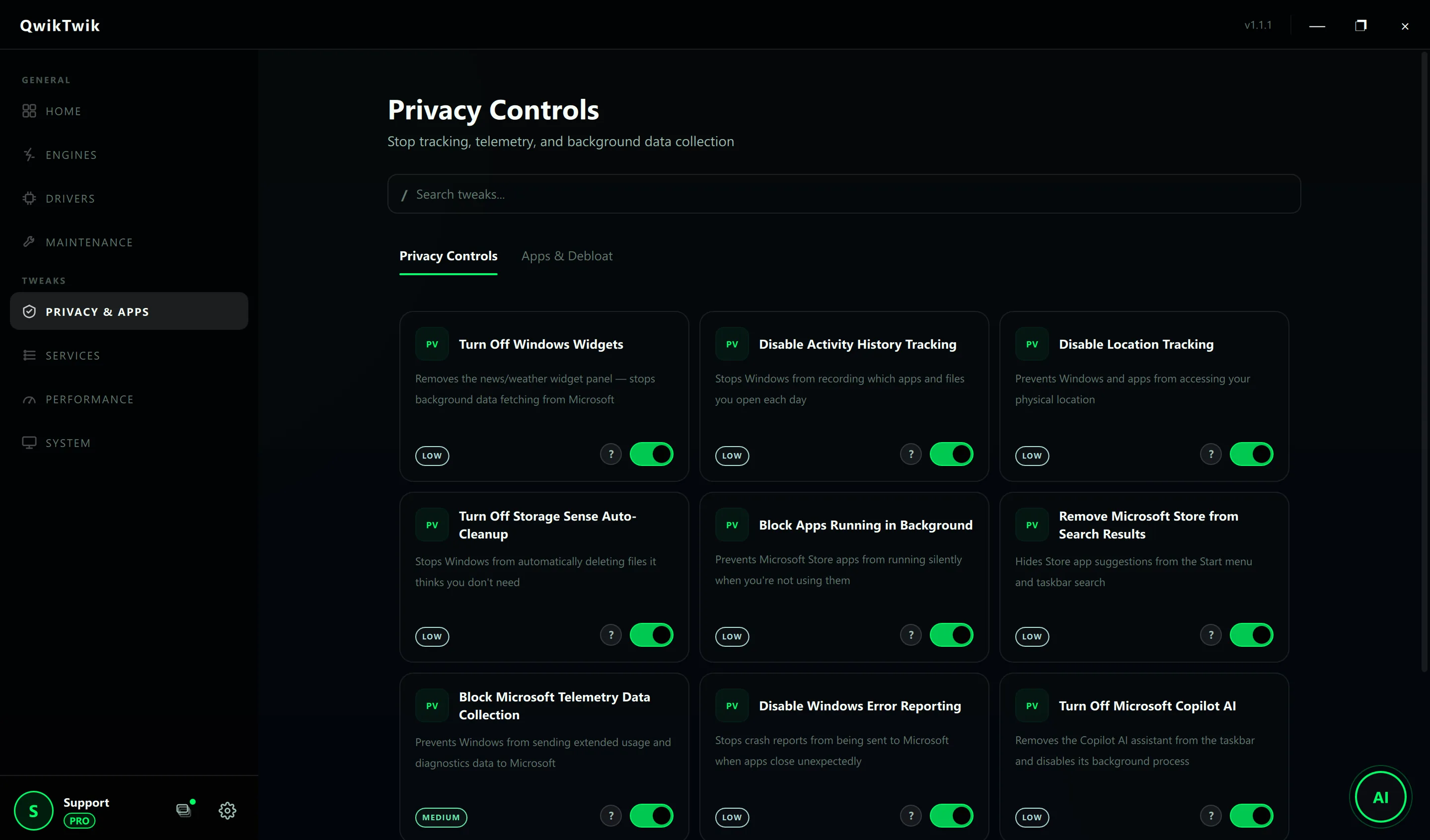
- Privacy & Apps > Privacy Controls: Block Apps Running in Background, Disable Windows Consumer Features.
- Services > Service Groups: prefer Disable Telemetry Service Group over hard-disabling individual services.
Optional Pro tweaks
- Pro bundles are not required here — keep focus on safe maintainability and compatibility.
- If you must go deeper: Services > Individual Services lets you toggle one service at a time with full descriptions.
If something breaks
- Maintenance > Repair & Recovery > Service Repair: Restore Microsoft Store Install Services, Restore Windows Update Services.
- Maintenance > Repair & Recovery > Service Repair: Restore App Compatibility Assistant Service if installers start failing.
- Home > Backups: Create a System Restore Point before each debloat pass.
Validation checklist
- Windows Update works and can check/install normally.
- Store install/repair path remains available.
- No critical drivers or peripherals disappear after reboot.
Common mistakes to avoid
- Disabling update infrastructure and then forgetting why the system stopped patching.
- Removing optional components without checking dependency usage.
- Applying online script packs with unknown policy side effects.