How to increase FPS on a low-end PC
A low-risk optimization sequence focused on bottleneck removal, memory pressure control, and stutter reduction.
The problem
Older or budget hardware can't keep up — low FPS and constant micro-stutter make games hard to enjoy.
The fix
Cut overhead first (startup, debloat, indexing, cleanup), then apply targeted system tweaks so frame pacing becomes smooth even if peak FPS stays modest.
Why this guide matters
On low-end hardware, the fastest gains usually come from reducing overhead, not from extreme micro-tuning. Startup load, background services, and storage behavior matter more than most users expect.
Use Free Tweaks to simplify the operating environment first. When the system is cleaner, frame pacing becomes easier to stabilize even if peak FPS does not jump dramatically.
Before you start
- Ensure at least moderate free disk space on the system drive.
- Set a fixed graphics preset in your game before benchmarking.
- Do not run update-heavy background tasks while collecting results.
Step-by-step workflow
Lower overhead first
Apply this phase in isolation, then validate before moving forward. The goal is measurable improvement in stability and responsiveness, not maximum tweak count.
- Disable non-essential startup and background software.
- Use light visual settings and keep only essential overlays.
- Free disk space on system drive to avoid paging spikes.
Tune system-level behavior
Apply this phase in isolation, then validate before moving forward. The goal is measurable improvement in stability and responsiveness, not maximum tweak count.
- Switch to a high-performance power plan for better CPU boost behavior.
- Apply safe debloat actions to reduce RAM pressure.
- Optimize game launch options only after system tuning is stable.
Prioritize consistency
Apply this phase in isolation, then validate before moving forward. The goal is measurable improvement in stability and responsiveness, not maximum tweak count.
- Cap FPS to a stable value when average FPS is unstable.
- Prefer lower stutter over peak FPS spikes.
- Keep thermal throttling under control with clean airflow.
How to run this inside QwikTwik
Start from the Free tools to build a stable baseline. Each path below maps to a real tab in the QwikTwik desktop app — open the named tab and apply items in the listed order.
Free path
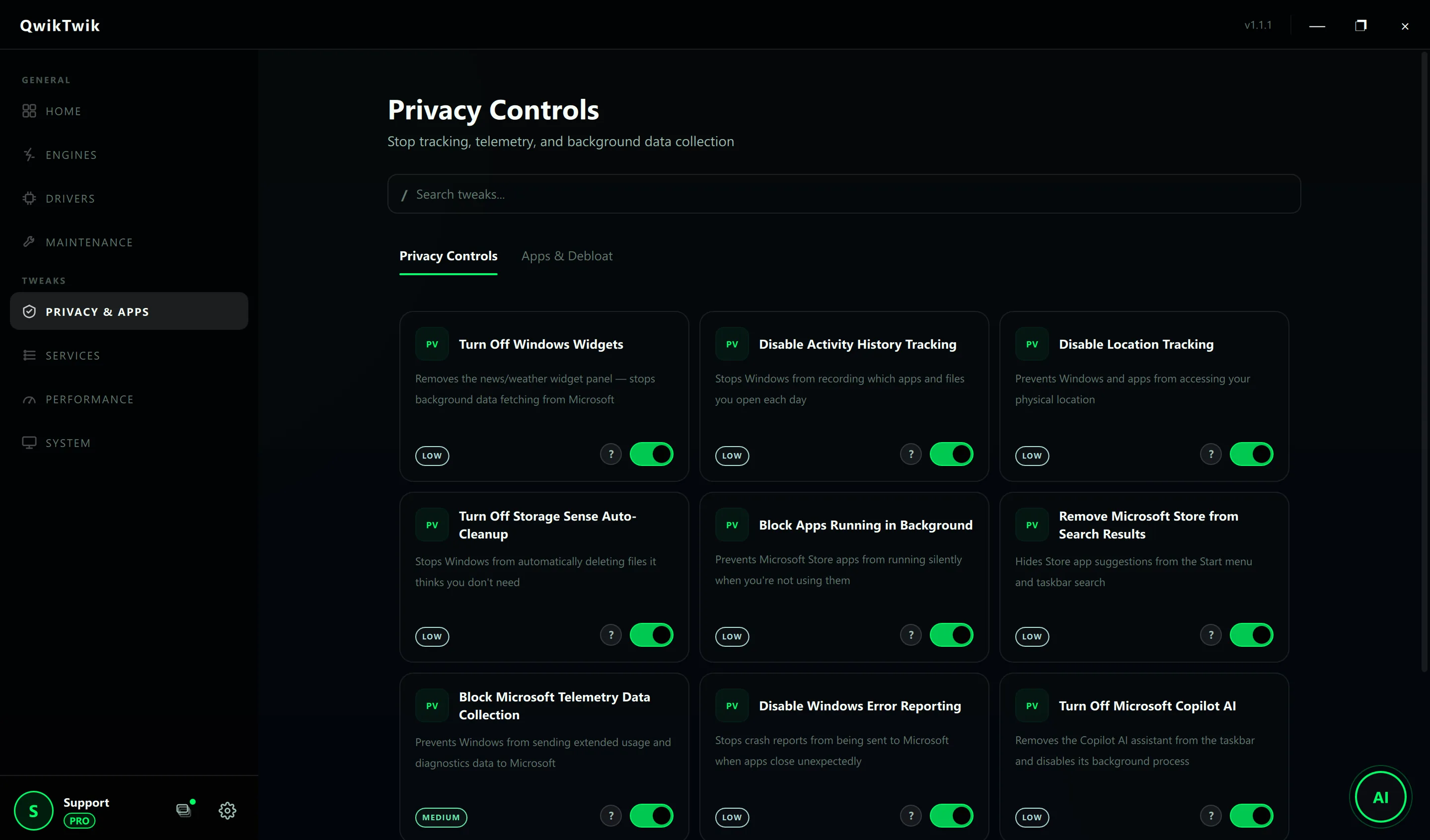
- Privacy & Apps > Apps & Debloat: use the Installed Apps view to remove non-essential bundled apps.
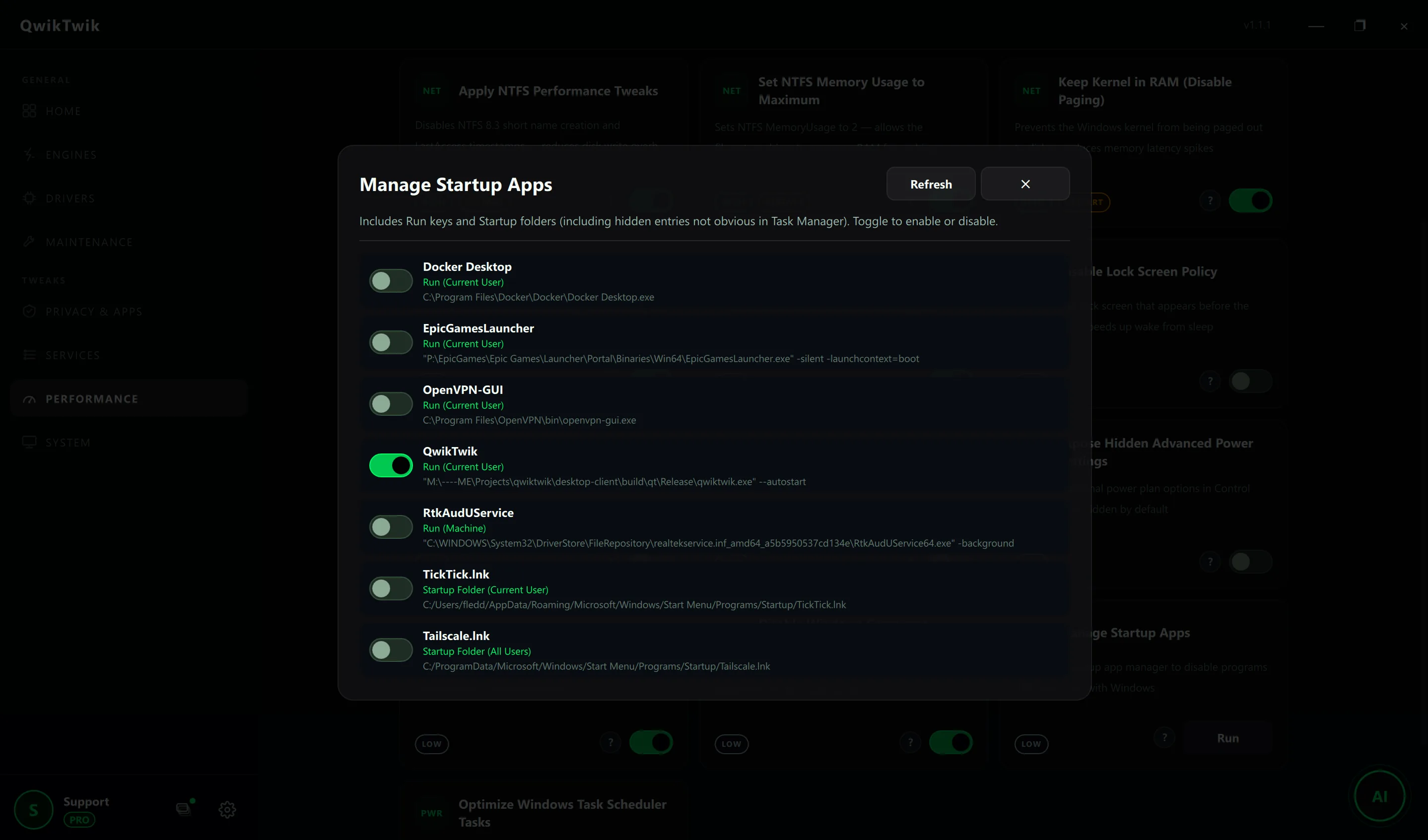
- Performance > Registry & Startup: Manage Startup Apps and Optimize Windows Task Scheduler Tasks.
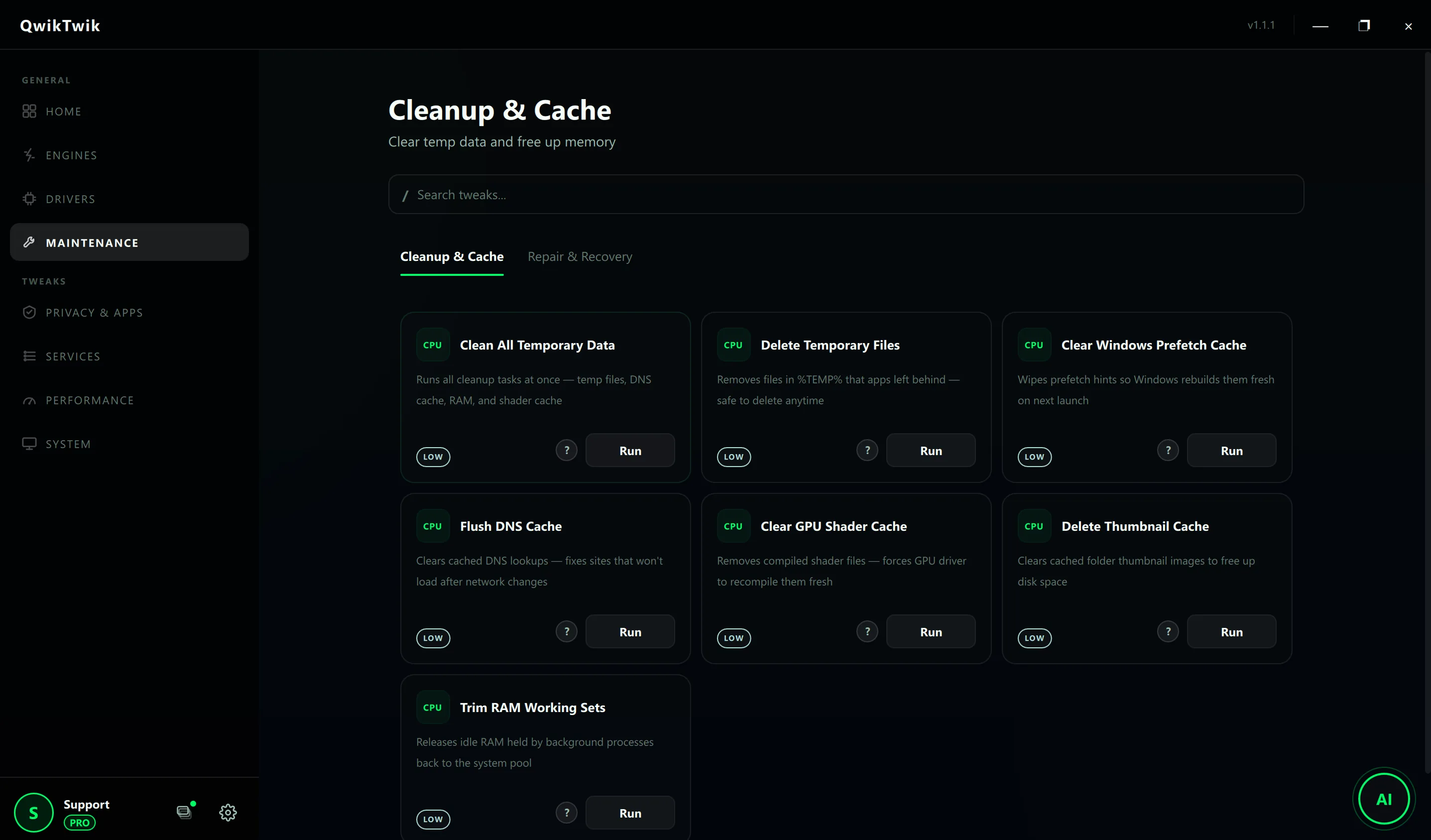
- Maintenance > Cleanup & Cache: run the full Clean All Temporary Data cycle before re-testing.
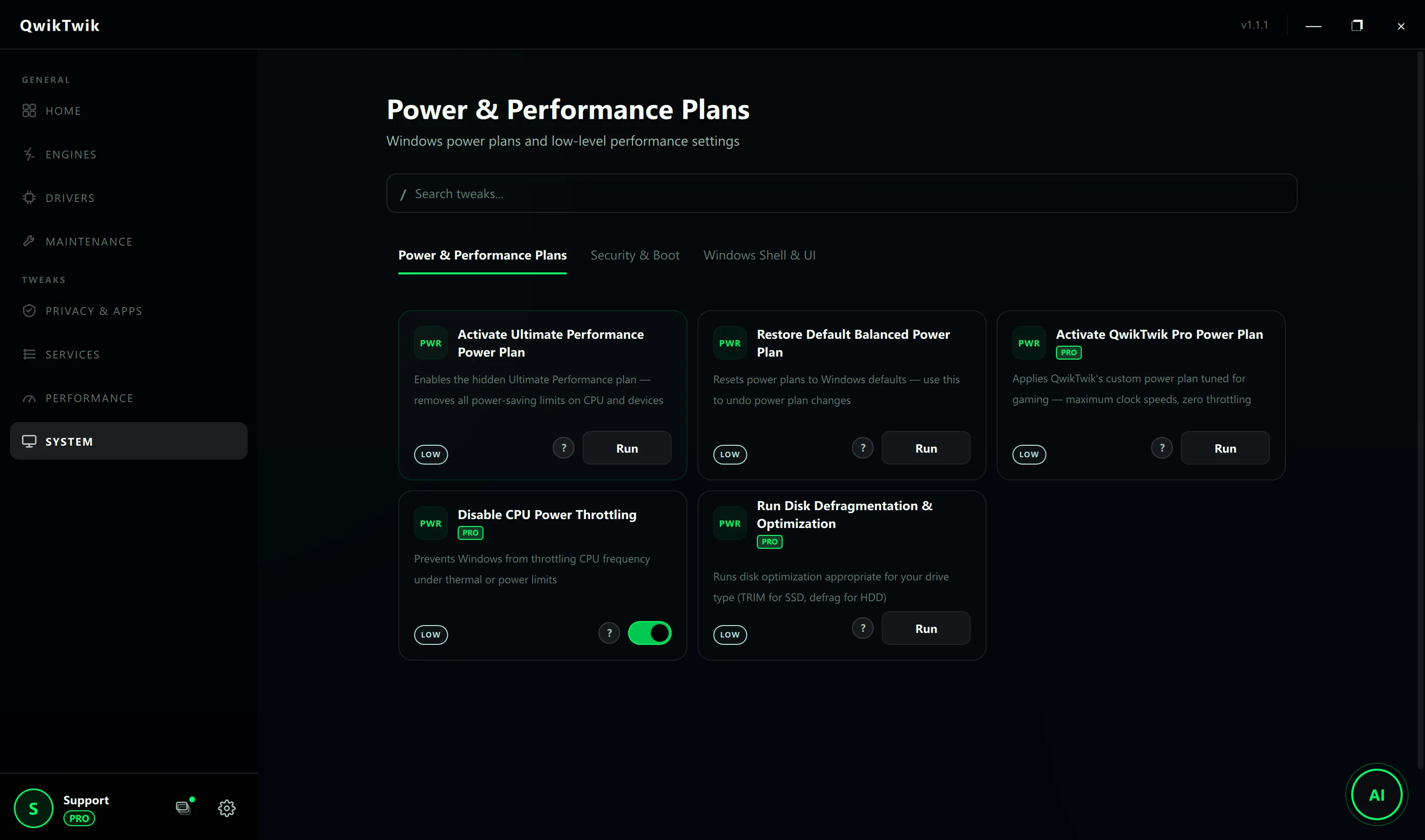
- System > Windows Shell & UI: Optimize Visual Effects for Performance, Disable Windows Search File Indexing.
Optional Pro tweaks
- Performance > CPU & Memory: Apply Recommended CPU Tweaks only after the Free baseline is stable.
- Performance > Graphics & Display: test Disable Multi-Plane Overlay (MPO) and Enable Hardware GPU Scheduling (HAGS) one at a time.
- Performance > Registry & Startup: Apply NTFS Performance Tweaks to reduce filesystem overhead.
If something breaks
- Maintenance > Repair & Recovery > System Repair: Restore Startup Tasks Policy, Restore Search / Indexing Policy.
- Maintenance > Repair & Recovery > Service Repair: Restore Microsoft Store Install Services if debloat went too deep.
- Home > Backups: Create a System Restore Point before aggressive debloat.
Validation checklist
- Lower stutter frequency and fewer big frame-time spikes.
- Better 1% low behavior in repeated scenes.
- Desktop remains responsive after long sessions.
Common mistakes to avoid
- Chasing maximum average FPS while ignoring frame pacing.
- Applying high-impact security/policy toggles before simple cleanup.
- Running too many resident tools that negate optimization gains.